Leaked Facebook document shows the company has no idea how to manage user data
Facebook is always involved in privacy issues, as the company has an explicit business model that relies on selling user data. A new document, however, suggests things could be worse than we thought.
The internal document (via Engadget) is a report written by Privacy Engineers from the Facebook Ad team, and it was sent to the company’s leaders. The engineers detail how Facebook could deal with local regulators asking for new privacy measures to protect user data.
However, according to the report, even Facebook engineers agree that the company has no control over how user data is managed internally. The Facebook Ad team warned the social network’s directors that the company would have a hard time promising governments any changes in these aspects.
“We do not have an adequate level of control and explainability over how our systems use data, and thus we can’t confidently make controlled policy changes or external commitments such as ‘we will not use X data for Y purpose,'” wrote the report’s authors. “And yet, this is exactly what regulators expect us to do, increasing our risk of mistakes and misrepresentation.”
The document shows that Facebook’s data base has “open boundaries”, which means that all user data including first, second, and third party data as well as sensitive data can be stored in one place. As a result, controlling a specific piece of this data is not an easy task. Although a Facebook spokesperson denied that the company is not complying with regulators, an anonymous employee described the situation as a “complete shitshow.”
Earlier this year, Mark Zuckerberg announced that Meta is rebuilding its ad infrastructure to target iOS users. Since the launch of App Tracking Transparency last year, the social network has lost more than $10 billion in revenue. Facebook is still critical of Apple’s privacy policies which it claims “harm” both to users and businesses.
Read also:
Meta announces its first retail store as it wants more people to join the metaverse
How to deactivate or delete your Facebook account or change privacy settings on iPhone
Apple’s Studio Display’s poor webcam quality is not a software bug after all
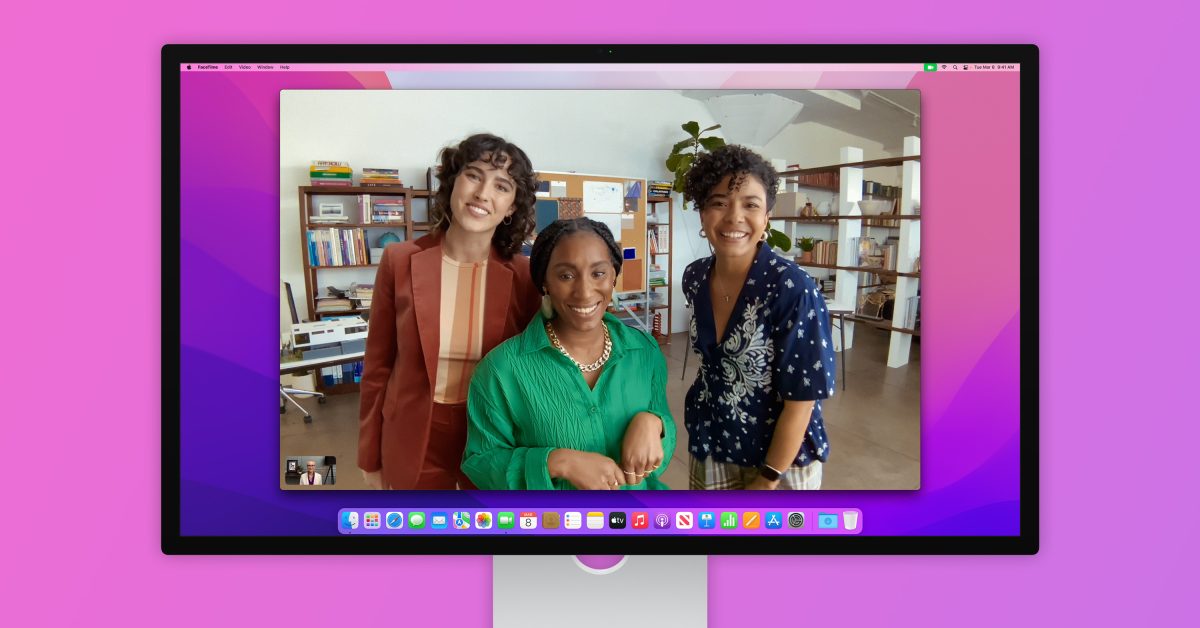
When Apple launched Studio Display it promised “sensational webcam quality”. Customers discovered that Studio Display’s built-in camera was not capturing good images. Apple has now released beta software to address some of these problems. But Studio Display’s low webcam quality may not be a bug in the software.
The complaints
According to most Studio Display owners, webcam images look terrible compared with the front cameras on Apple devices. In most cases, the images look blurry, are washed out, and have a lot of noise.
In his review for The Verge, Nilay Patel wrote that the Studio Display’s camera looks “awful in good light, and downright miserable in low light.” Joanna Stern at The Wall Street Journal likened the camera performance to that of an “old BlackBerry.” Gizmodo had similar complaints, saying that the Studio Display’s webcam is “noisy” and “not great.”
Soon after the first Studio Display reviews criticizing its 12-megapixel webcam were published on the web, Apple told the press that it was working on a software update to improve the quality of the image captured by the built-in camera.
What changes when you update
Nearly two months after Studio Display was announced, Apple today released a beta firmware to developers that brings enhancements to the image processing of the company’s built-in display webcam.
The update is currently only available for macOS Monterey beta users. It’s not known when it will become public. Studio Display users are already using the update and have seen what changes it makes. And it turns out, the update doesn’t change much.
As noted by Jason Snell, Apple has made some adjustments to make the Center Stage cropping less aggressive. At the same time, James Thomson also noted that there’s much less noise in the webcam images after the update, as well as a bit more contrast, but the quality is still “quite washed out” compared to other webcams.
Comparing the 15. 5 (1st pic) and 15. 4 (2nd pic) firmware for the Studio Display camera. There’s a _lot_ less noise, and a touch more contrast, but it’s still quite washed out compared to the iMac Pro camera (3rd pic, taken last month). pic.twitter.com/xvaYNgnB4q
The update doesn’t seem to miraculously improve the quality of the Studio Display’s webcam, and there’s a reason for that.
It’s all about the ultra-wide lens
Apple proudly says that the Studio Display has a 12-megapixel camera, which should be enough for sharp images. After all, the iPhone and other Apple devices also have 12-megapixel front-facing cameras. But why is the Studio Display webcam so different in terms of image quality?
While most Apple devices have a regular wide front camera, Studio Display has an ultra-wide lens. This is because it has Center Stage, a feature that uses machine learning to always center the image on a person during a video call or video recording. Since this camera has no optical zoom, Center Stage digitally crops the image to center the people in the frame.
So while an iPhone is capable of taking a real 12-megapixel selfie, Center Stage cameras capture images at 12 megapixels using the ultra-wide lens and then digitally crop them to look like a regular photo or video. These images are less sharp.
For instance, my third generation iPad Air has a seven-megapixel front-facing camera. When I compare it to my iPad mini 6 (which has Center Stage), the old iPad’s images look sharper.
The thing is, the ultra-wide lens is 12MP at its full size. The lens zooms in to you and uses digital cropping for regular photos. This can cause quality loss. Not to mention that the ultra-wide lens has a smaller aperture, so it gets less light. pic.twitter.com/yg07cynGrz
As another example, I took the same picture using the wide and ultra-wide rear lens on my iPhone 13 Pro Max.
Both lenses have 12-megapixel resolution, but then I cropped the photo captured by the ultra-wide lens to make it look like the photo from the wide lens, simulating what happens with photos taken by a Center Stage camera. As you can see, the result is of a significantly lower quality.
And that’s why the webcam on the iMac or MacBook Pro will always look better than the one on the Studio Display, because they’re not ultra-wide. When you’re taking a picture or shooting video with a regular webcam, you’re taking advantage of every single pixel of it.
Is there a solution?
Unfortunately, no matter what Apple does in terms of software updates, there’s nothing that will dramatically improve the Studio Display webcam.
The only two possible solutions to solve this problem are to use a higher resolution sensor, so that the cropped image is at least 12 megapixels, or a larger sensor to capture more light – which would help reduce noise in the image.
Has the Webcam been set up in the original Studio Display?
Smartwatch prices prove to be a problem for underrepresented groups in medical research, study finds
Smartwatches such as the Apple Watch offer a variety of health functions, including fitness monitoring and blood oxygen monitoring. It’s become a critical part of many people’s lives and has even saved a few. As organizations use the data, it’s becoming an essential research tool.
A new study from the National Institutes of Health (NIH) spotted inequalities within the ownership of smartwatches and wearable technology. According to the study, smartwatch owners tend to be white, wealthy, young and educated.
Researchers conducted the study through the NIH’s All of Us Research Program. This effort is building a health database representative of the United States. The team’s goal is to purposefully include underrepresented groups in medical research.
The study revealed that Fitbit users who submitted their health information directly to their Fitbits were more likely to be from wealthy and whiter backgrounds than those in the other groups. This led the team to survey over 1,000 patients at six Federally Qualified Health Centers to find out why. Some of those team members wrote about this survey in STAT:
[R]espondents who were interested in using an activity monitor made it clear: their lack of use wasn’t because they were unwilling to use devices or contribute the resulting data to research. They cited cost barriers (49%), the need for support in using the devices (19%), and a lack of a clear understanding of the potential value of these devices to their health (16%).
People want smartwatches
About 40% of people who responded identify as Hispanic, 36% as non-Hispanic Black or African American, and 15% as as non-Hispanic white. Sixty-eight percent speak English and 32% speak Spanish. When asked if the participants would like a fitness tracker, 58% responded “yes,” 20% responded “no”, and the rest did not answer.
It’s not that people who don’t fit these measures don’t want smartwatches, it’s that the devices are too expensive. High costs for wearable technology make it difficult to include underrepresented populations in medical research.
As health features continue to come to wearable devices, it’s becoming an important tool in people’s health and medical research. It’s important that more people from underrepresented communities have access to the technology so they can provide better and more detailed data to all.
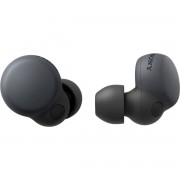
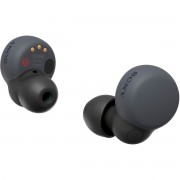
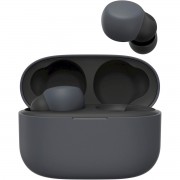
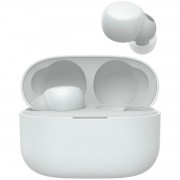
Sony LinkBuds S leak shows traditional design, promises ANC and Ambient modes
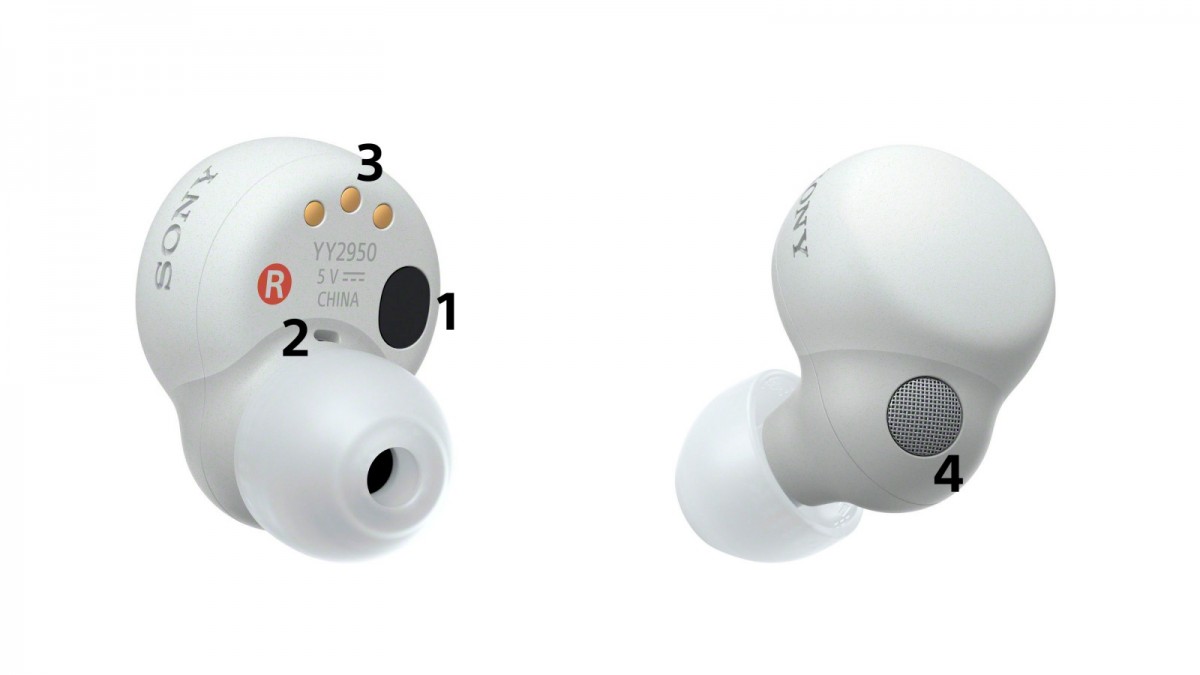
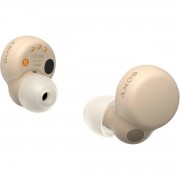
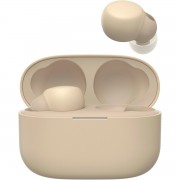
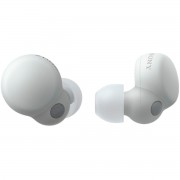
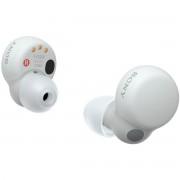
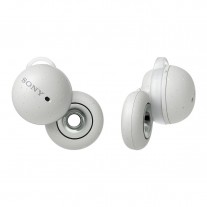
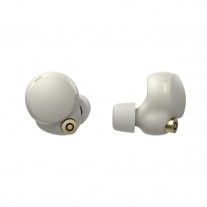
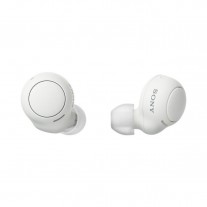
The Sony LinkBuds have a unique design. They are made for everyday wear, and let all the sounds from the world reach you. A second model in the series has leaked, but it looks strangely normal, like a cheaper version of the WF-1000XM4.
It should be marketed as the Sony LinkBuds S (WF-LSN900) when it goes official. The original model has a model number WF-L900. It also has an opening in the middle that allows ambient sounds to pass through.
The S model does not, instead it will allegedly feature an Ambient Mode to try to do the same. Although this mode can be found on other TWS buds, pipes that sound like the buds’ mics are sent to your ears by the pipes also have it. However, the results don’t always match the original.
What the LinkBuds S will do that other TWS buds don’t is that the Ambient Mode will be triggered automatically – the buds will learn from your behavior to know when to switch between Ambient and ANC modes.
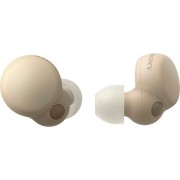
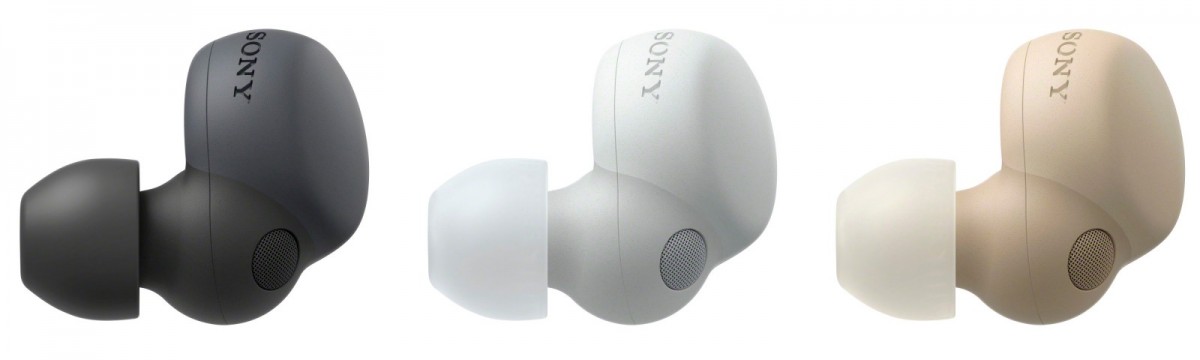
Leaked images of Sony LinkBuds S (WF-LSN900)
Active noise cancellation (ANC) will be one of the advantages of the S model and it should be a similar setup to the WF-1000XM4. Also, these should offer a better sound stage than the original LinkBuds when listening to music.
The buds will be available in three colors: Black, White and Gold:
There’s no word on pricing for the LinkBuds S yet, but to put things in perspective, the WF-1000XM4 are EUR280 (MSRP), the original LinkBuds are EUR180 and the WF-C500 are EUR70.
2022 Samsung TVs Earn Carbon Reduction Certification From the Carbon Trust – Samsung Global Newsroom
Samsung continues its efforts to create more sustainable products in line with its ‘Going Green’ vision
Samsung Electronics, the world’s leading TV manufacturer for 16 consecutive years, announced that its 2022 Neo QLEDs earned the ‘Reducing CO2’ certification from the Carbon Trust in recognition of its efforts to reduce its carbon footprint.
The Carbon Trust is a global climate consultancy driven by the mission to accelerate the move to a decarbonised future. The ‘Reducing CO2’ certification signifies that a product’s carbon footprint is reducing year-on-year. This certification evaluates GHG (Greenhouse Gases) produced throughout the product’s lifecycle, using international standards. 1
This year, 11 models across Samsung’s 2022 TV lineup, including three Neo QLED 8K models, three Neo QLED 4K models, two QLED models, two Lifestyle TV models and one Crystal UHD TV model, obtained the certification by reducing the weight of the product and the power consumption during the use phase.
Samsung has long been committed to not only driving product innovation but also shaping and implementing environmental sustainability technologies. During Samsung’s keynote event at CES 2022, Jong-Hee (JH) Han, Vice Chairman, CEO and Head of Samsung Electronic’s Device eXperience (DX) Division, unveiled the company’s vision of “Together for Tomorrow”, highlighting Samsung’s commitment to creating a sustainable future and driving collaboration as part of the global community to preserve our planet.
As part of the initiative, Samsung’s Visual Display Business is set to use around 30 times more recycled plastics to produce its display products than it did in 2021. Samsung also revealed its plan to expand the use of recycled materials in all of their mobile and home appliance products by 2025.
In addition, Samsung has been adopting various sustainable practices to minimize the environmental impacts throughout its products’ lifecycles. The company’s ‘Eco-Packaging’ program — which allows consumers to upcycle the packaging for TV products into versatile pieces of furniture — has been upgraded this year with product packaging using 90% less ink while also removing the staples during production.
Samsung has also expanded the SolarCell Remote, which eliminates battery waste with built-in solar panels, to all TV models in 2022. Additionally, Samsung has developed and applied a new material, made with repurposed ocean-bound plastics, to a 2022 high resolution monitor S8 to reduce marine waste and minimize the environmental footprint.
“As the market leader for 16 consecutive years, Samsung is not only focused on the technological advancements, but innovations around human-centric technology and the environment,” said Seokwoo Yong, Executive Vice President and Head of R&D Team, Visual Display Business at Samsung Electronics. “Samsung will continue to implement various sustainability initiatives and eco-conscious activities in line with its ‘Going Green’ vision.”
1 Internationally recognized standards such as PAS 2050, GHG Product Standard or ISO 14067
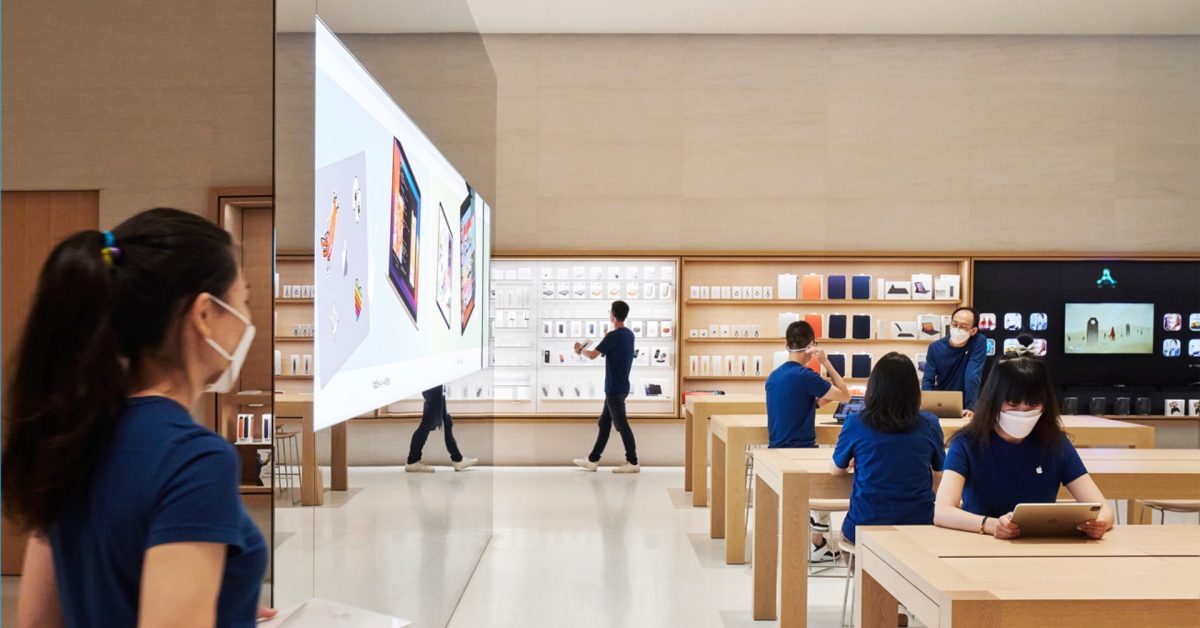
Apple slows the hiring of Geniuses for some of its retail stores
Apple is slowing down the hiring of Geniuses in some retail shops. Although there is not an actual hiring freeze in place, people close to the issue report that Genius roles aren’t being filled due to employee resignations. Seen as a cost-cutting move by some, the tech giant has also retracted several verbal job offers for some Genius roles.
Reported by Bloomberg, this hiring slowdown has left a handful of technical positions open at retail stores across the United States. This is believed to be an effort to reduce staff in locations not as busy before the pandemic.
While the Genius role has been part of the Apple Store tradition since its inception in 2001, multiple locations have eliminated the famous Genius Bar. The Genius Bar was a place where customers could get technical assistance, but the Geniuses are now available to assist customers throughout the store.
Additionally, the Bloomberg article states that Apple has outsourced its Mac repairs to remote depots. Despite this, Geniuses continue to troubleshoot, manage product repair pickups, and provide general assistance.
It’s not only the Genius Bar that’s seen cutbacks, however. Apple Stores may have reduced the number of Creatives (those who teach Today at Apple) employees. Sources with knowledge of these cutbacks claim it’s hurting customer service and slowing wait times.
Apple declined to comment to Bloomberg even though numerous Genius roles are still available to apply for online.
Here’s how to update the Apple Studio Display and improve your webcam quality
Apple has released the beta of its promised update to improve the webcam on its Studio Display for camera tuning, contrast, noise reduction, and more. You can download the Studio Display update for your webcam here.
At launch, Apple received a lot of criticism from reviewers over the Studio Display’s 12 MP ultrawide webcam. The company responded by saying the poor quality early users reported wasn’t expected behavior and a future software update would solve the problems.
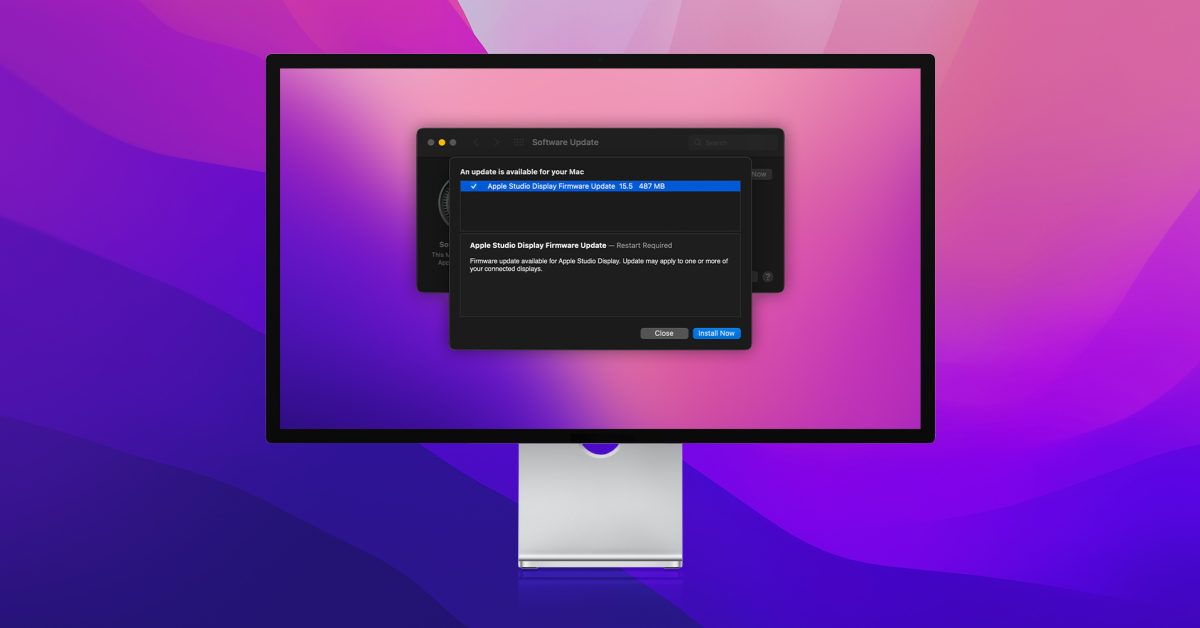
Now alongside the macOS 12. 4 beta 3, Apple has seeded the first Apple Studio Display Firmware Update 15. 5 beta with webcam fixes. We noticed some code changes that showed webcam improvements in the most recent update. Apple has confirmed this to The verge .
How do I download and update the Studio Display webcam fix
It appears you’ll need to have already been on the macOS Monterey beta or install the macOS 12. 4 beta 3 before the new Apple Studio Display update will appear. macOS 12. 4 beta 3 is available now for developers and public testers.
If you are already using the macOS Monterey Beta
On your Mac head to System Preferences > Software Update
The Apple Studio Display Firmware Update 15. 5 should appear alongside the macOS 12. 4 beta 3
Choose Install Now
If you’re not running the macOS beta yet
You’ll need to install either the developer or public macOS 12. 4 beta 3
Follow along with detailed steps for both options in our guide
The macOS 12. 4 beta 3 is available now for devs with the public version arriving this afternoon
After installing the macOS 12. 4 beta 3, head to System Preferences > Software Update
The Apple Studio Display Firmware Update 15. 5 should appear
Choose Install Now
Here’s an early look at the difference the new update makes for the webcam:
new Studio Display camera firmware (top right) seems to be less aggressive at cropping than old firmware (top left) and much less than iPad Center Stage (bottom) pic.twitter.com/lk3NaIduHE
Unify your smart home with HOOBS – bring unsupported devices into Apple’s HomeKit [Video]
HomeKit’s ecosystem is fantastic, but the directly compatible devices can get expensive – especially if you already have incompatible devices at home that you need to replace. $25 for a smart plug, $40 for a door sensor – it really adds up quickly. There are plenty of other smart home devices available on Amazon, from $6 smart plugs to $25 cameras, outside the HomeKit ecosystem. Thankfully, many of these otherwise unsupported devices can be brought into HomeKit with the use of Homebridge software.
Homebridge is a piece of software that connects to an unsupported smart-home device in order to make it accessible through Apple HomeKit. There are thousands of smart home devices otherwise limited to Amazon Alexa or Google Assistant support that become accessible through Apple’s Home app with the use of Homebridge.
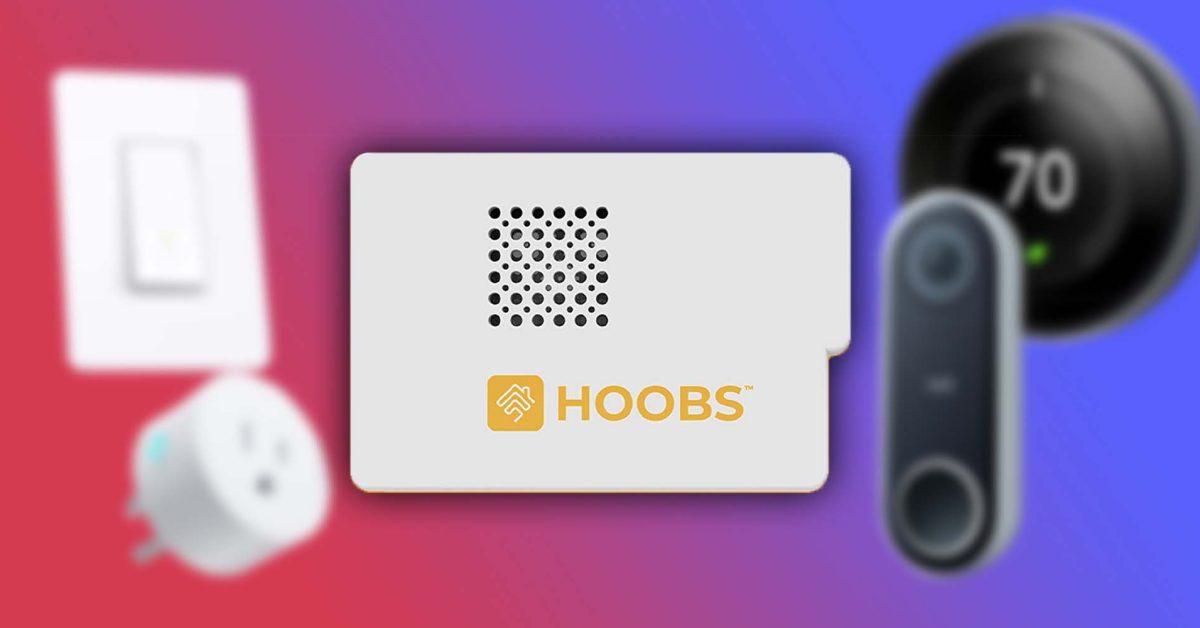
Homebridge can be run on Windows, Linux, macOS, or a Docker container, but I prefer to run it on a low-cost Raspberry Pi. I personally use HOOBS, which is an easy-to-use version of Homebridge with a nice web interface. HOOBS can be downloaded for free and installed on your own Raspberry Pi, or you can purchase an all-in-one box kit with it ready to go.
Raspberry Pi 4 kit: $149
HOOBS all-in-one: $249
Installing Homebridge on a Raspberry Pi
If you opt to install Homebridge/HOOBS yourself, it is actually very straightforward. Start by downloading the image. It’s free, but you can opt to donate a custom amount to support the software if you like. Be aware that you’ll have to put in payment details to download even if you’re not donating.
Once the “hoobs-##.xz” file is downloaded, you can use a program like balenaEtcher to flash the operating system to an empty micro-SD card. It is important that this SD card is empty, as flashing the image to it will entirely erase the card and any files left on it. The SD card can then be inserted into the Raspberry Pi.
The Raspberry Pi should be powered with a USB-C cable and connected to your home internet with an ethernet cable. You can set up HOOBS over Wi-Fi, but directly wiring it will provide more reliable results.
To connect to the HOOBS device, open your web browser and go to http://hoobs.local if you are on a Mac or http://hoobs on a PC. On your first visit, you will be asked to set up an account, then you will be greeted with the interface. This is the web interface you will use to connect new smart home devices and add additional plugins.
Home Hub vs. Homebridge
The Raspberry Pi only serves as an interface between the non-HomeKit device on your network and an Apple device on your network. It will not function as a Home Hub, which is necessary to control smart home devices through the Home app away from the local network. This means that you will need one Apple device at your house powered on in order to control your home devices when you are not on your local network.
Setting up an Apple device as a Home Hub
As Apple describes, you can use a HomePod, HomePod mini, Apple TV, or iPad as your Home Hub device. A HomePod or Apple TV signed in with the same iCloud account as your Home will automatically become a Home Hub. To set up an iPad as a Home Hub, the iPad must be signed in to the same iCloud account that was used to set up your HomeKit devices. Then go to Settings > Home > Enable and choose Use this iPad as a Home Hub.
I personally love smart light switches. They easily integrate with existing fixtures, and you don’t have to treat them like a smart device. You can still hit the switch like you would any other light; they just add the option of smart control. Kasa has multiple different options for these smart switches.
Kasa dimmer switch, three-pack: $49
Kasa light switch, three-pack: $35
Kasa three-way switch, two-pack: $34
First configure the switches in the Kasa Smart app on your phone. To connect with these switches (or other Kasa plugs or bulbs) to HOOBS it’s as simple as installing the Tplink Smarthome plugin. It automatically discovers the Kasa devices on the network to make them available through Apple’s Home app. Once your devices are added to HOOBS you’ll just have to link the bridge to Homekit as described below.
Adding a Nest thermostat and doorbell to HomeKit
By far my favorite devices to access through HomeKit are my Nest doorbell and thermostat. They have worked flawlessly in the Home app with live camera view, two-way speaking, and temperature control.
Start by setting up your Nest smart home devices in the Nest app, then head over to HOOBS and install the Nest plugin. On the configuration page, select link account. A new popup will open, so check that your browser didn’t block it. Log in to your Google account – the same one used in the Nest app – then copy the provided code and paste it in the next step. Just like that, your Nest devices are connected to HOOBS.
Adding cameras to HomeKit
Adding Blink cameras
Blink cameras are a very low-cost way to add cameras to your smart home. Blink offers a paid subscription for cloud storage of video, but you can also use the Blink sync module to store the clips locally on a USB drive without paying for cloud storage. The Homebridge integration with the cameras is still a work in progress, but the current version offers camera thumbnails, temperature readings, occupancy sensors, alerts, and the ability to arm/disarm the security system. The biggest limitation is the live view, which is currently only working for first-generation cameras.
Blink camera mini: $34
Blink outdoor and floodlight: $139
Blink sync module 2: $34
After getting your Blink cameras set up in the Blink app, install the Blink For Home HOOBS plugin. Enter the configuration and input your login credentials. On the first run, you will get a text message with the two-factor authentication code. Plug that code into the PIN requested in configuration, and you should be good to go.
Adding Wyze cameras
As I mentioned above, the Blink cameras still need a bit of improvement before they can provide a flawless experience. If you want a more full-featured experience and are willing to put in the time, Wyze cameras are a good option. Just be aware that setting them up takes a lot more work, including modified firmware. With the modified firmware, you can add them to HOOBS as you would a standard IP camera.
Adding existing IP cameras to Homekit
It’s easy to add a standard IP camera to HomeKit using HOOBS. Start by installing the Camera FFmpeg plugin. From there, you can add a camera under the configuration column. You will need the RTSP URL as well as a still-image URL. While adding the URL is all you have to do, you can adjust more specific options, such as the resolution, bitrate, frame rate, encoding method, and add multiple cameras.
Adding unsupported smart outlets to HomeKit
The Tuya and Smart Life apps are supported by almost all of the low-cost smart outlets and myriad other devices available on Amazon. Thankfully, the Tuya Web plugin can also bring all of these accessories into HOOBS and HomeKit. Beyond general smart outlets, you can also bring fans, dimmers, blinds, thermostats, and more devices into HomeKit.
Single smart plug four-pack: $22
Energy monitoring smart plug two-pack: $19
Outdoor-rated dual-smart plug: $19
Start by adding all your smart outlets and other Tuya-compatible devices to the Smart Life app. Then, add the Tuya Web plugin to HOOBS and enter the configuration page. Enter your country code (1 for the US), select your platform (Smart Life), and enter your log-in credentials. It’s as simple as that!
Bringing bridged devices into the Home app
Bringing smart home devices from HOOBS to Apple’s Home app is simple.
Open the HOOBS web interface and go to the Bridges tab. From there, select the desired bridge. Open the Home app, select +, and choose Add Accessory. Scan the QR code provided by HOOBS to bring the accessories on that bridge into HomeKit.
After scanning, you will have the opportunity to name your smart home devices, choose an icon, and select which room they belong in.
Using other voice assistants to control Homebridge devices
While the main purpose of Homebridge is to bring all your devices into HomeKit, it also unifies all your smart-home devices. This is where Amazon Alexa and Google Assistant support really show their value. You can bring all your smart home devices together with Homebridge, then use whichever smart speaker you have to control them. Why spend $100 on a new Apple HomePod mini for every room if you already have an extra Echo Dot lying around?
Adding Alexa support to Homebridge
The Alexa plugin allows you to control any Homebridge-controlled devices with any of your Amazon Alexa devices – even the Astro household robot. After installing the Alexa plugin, you’ll need to set up an account for the skill.
Enter your login credentials in the HOOBS Alexa plugin configuration page. Then, install the Homebridge Alexa skill in the Amazon Alexa app and link the skill to your account.
Adding Google Assistant support to Homebridge
Google Assistant support has been particularly useful for me as I now use a Pixel 6 Pro. While most devices around the house have integration support with Google assistant through their respective apps, using HomeBridge makes adding all the devices from different apps at once extremely simple.
The plugin to connect to your Google account is Gsh. Install the plugin, then go to the configuration page. From that page, select Link Account and sign in to your Google account. From the Google Home app on your Android or iOS device, select Plus in the upper left corner > Set up device > Works with Google > and add the Homebridge service. From there, log in with the same Google account.
The Homebridge-connected devices will show up under Linked to you. You can then move each device to the desired home and room within the Google Home app.
The downsides of Homebridge
Homebridge and HOOBS are fantastic solutions. The software allows otherwise totally unsupported devices to be integrated into HomeKit. There are other bridges available, but these tend to be very brand-specific devices. Using HOOBS, you can use almost any smart device with HomeKit, Amazon Alexa, or Google Assistant. But, it isn’t a perfect solution.
Getting the setup right for devices is a bit more complicated. When I was installing the TPLink smart plugin, the HOOBS web interface froze, and I had to unplug my Raspberry Pi to get it unfrozen. Once it was set up, however, I haven’t had any issues. Everything has been working as expected.
There are also security considerations. I am comfortable using the software and the various plugins in my home, but native HomeKit devices are arguably more secure than installing HomeBridge plugins that rely on cloud services.
Is Homebridge the solution for you?
That certainly depends, but if you have myriad apps on your phone all with the dedicated purpose of controlling one of your many smart devices, Homebridge or HOOBS could certainly be a great solution. It allows you to uninstall or move all those apps to the App Library while you use Apple’s Home app or Siri for almost every smart home-related need.
If you’re just a bit tech-savvy, it doesn’t take too long to set up, and you can add way more smart home devices than work natively with HomeKit. And, with each non-compatible device you bring into HomeKit, you can save money over the native options. There is even support for HomeKit Secure video now through scrypted.
Do you have favorite smart home devices? Let us know in the comments down below!
iOS 15.5 beta blocks ‘Sensitive Locations’ for Memories in Photos app
Apple today released the third beta of iOS 15.5 to developers, and while the update doesn’t seem to have any significant changes, Apple has made an interesting tweak to its native Photos app. The system will now block “Sensitive Locations” for Memories in the Photos app.
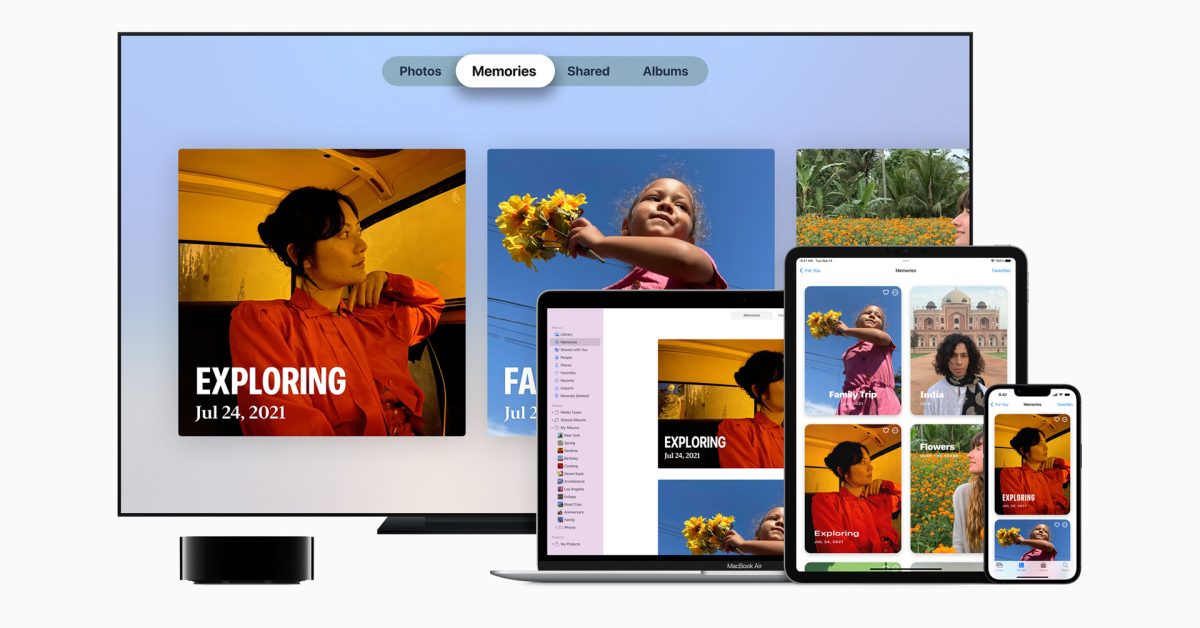
For those unfamiliar, Memories is a feature of the Photos app on iOS and macOS that recognizes people, places, and events in your photo library to automatically create “curated collections” with a slideshow. Since this feature is entirely based on machine learning, Apple has now made some changes to the app to avoid creating some unwanted memories.
As 9to5Mac analyzed in the iOS 15.5 beta 3 code, the Photos app now has a list of “Sensitive Locations,” so that any photos taken there will never be added to a memory. Interestingly, all the places banned in this version are related to the Holocaust.
Here’s the list of places that are blocked from the Memories feature in the Photos app with iOS 15.5 beta 3:
Yad Vashem Memorial
Dachau concentration camp
US Holocaust Museum
Majdanek concentration camp
Berlin Holocaust Memorial
Schindler Factory
Belzec extermination camp
Anne Frank House
Sobibor extermination camp
Treblinka extermination camp
Chelmno-Kulmhof extermination camp
Auschwitz-Birkenau concentration camp
Each location has latitude, longitude, and radius assigned, so that the Photos app will ignore images taken at these locations when creating new memories. Of course, Apple can update this list with new places with future iOS updates.
iOS 15.5 beta also brings changes to the Wallet app and reveals upcoming changes to Apple Pay. It’s unclear when exactly the update will be released to the public.
Read also:
iOS 15.5 beta 1 changes and features: Wallet updates & handy new HomePod feature [Video]
iOS 15.5 includes support for apps with external purchases
iOS 15.5 hints at Bancomat and Bancontact on Apple Pay
Apple to rebrand iTunes Pass in Wallet app with iOS 15.5
Overwatch 2‘s first beta is now live, giving players a taste of substantial changes coming to Blizzard Entertainment’s hero shooter. These changes include new team structures for five heroes, new heros, and significant reworks to many characters.
In the Overwatch 2 beta, players will find very different versions of Bastion, Doomfist, Orisa, and Sombra on the roster. Others heroes like Reinhardt and Cassidy have received key ability updates that allow them to update their kits in important ways. In general, there are fewer ways to stun enemies, and each role type has its own passive perks: tanks receive less knockback, damage characters get a speed boost, and all support characters automatically heal themselves over time.
Here’s a breakdown of the hero changes in Overwatch 2‘s beta test — and presumably going forward.
Bastion
The terrifying turret Bastion is seeing some of the biggest changes in Overwatch 2. He has lost his Self-Repair abilities, which means he cannot heal himself. He can still switch between Recon mode, his mobile form, and Assault mode, his tank form, but the latter now lets Bastion move and is on a cooldown. Bastion also has a new alt-fire attack, the A-36 Tactical Grenade, which fires a bomb that bounces off walls and explodes when it impacts enemies or hits the ground.
Bastion’s Ultimate ability has also been redesigned. Bastion no longer transforms into a mobile tank equipped with powerful cannons. Instead, it switches into Artillery mode and fires up to three artillery rounds at targets.
Doomfist
Image: Blizzard Entertainment
Doomfist moves from a damage role to a tank role, with a boost in health and a new Power Block ability, which protects him from the front and can empower his Rocket Punch. Doomfist has had his Rocket Punch, Seismic Slam, and Hand Cannon abilities tweaked. His shoryuken-style Uppercut ability was also removed. Meteor Strike, Doomfist’s Ultimate, will now activate faster and slow enemies upon impact.
Sombra
Sombra has been reworked to be a more dangerous hacker and a better damage dealer. Her Hack ability not only disrupts enemy abilities but also makes it easier to expose the location of hacked enemies to Sombra, her teammates and her entire team. Hacked enemies also take more damage from Sombra herself.
EMP, Sombra’s Ultimate, now deals 40% damage to enemies caught in the pulse’s radius, in addition to disrupting barriers, like Winston’s protective energy dome.
Orisa
Image: Blizzard Entertainment
The centuaurlike defense robot Orisa is radically changing in Overwatch 2, starting with the removal of her Protective Barrier shield and her Halt! Graviton charge is an ability. Replacing those abilities are Energy Javelin, a new projectile that stuns and knocks back enemies, and Javelin Spin, which blocks projectiles, pushes back enemies, and gives Orisa a speed boost.
The new Ultimate for Orisa, Supercharger is Terra Surge. Orisa will be able to hunker down and sweep in enemies nearby, before unleashing a sudden surge of damage following a short charge. Fortify will also boost her during Terra Surge.
Orisa’s primary fire, Augmented Fusion Driver, is also changing. It now offers infinite ammo, but is governed by a heat mechanic.
Reinhardt
Reinhardt has now two charges for his Fire Strike projectile as part of Blizzard’s strategy to increase tank brawler capabilities. Reinhardt also enjoys greater control over his Charge attack and can cancel it out.
Winston
Image: Blizzard Entertainment
Winston’s Tesla Cannon now has a secondary fire mode: He can charge it up and release a ball of focused electricity.
Zarya
Zarya’s personal Particle Barrier and teammate-targeted Projected Barrier are now on a shared cooldown, meaning she could apply back-to-back bubbles for herself or simultaneously for two teammates, if necessary.
Cassidy
Overwatch cowboy Cassidy loses his Flashbang stun ability for something more damage-focused: Magnetic Grenade. That short-range grenade will home in on nearby enemies — hence the magnetic descriptor — and can stick to enemies, dealing additional damage on explosion.
Mei
Image: Blizzard Entertainment
Mei’s days of freezing players with her Endothermic Blaster are over. Although her ice gun deals damage to slow down enemies but does not turn you into an Ice sculpture, it is no longer able to do so. Only Mei’s Ultimate, Blizzard, will completely freeze opponents now.
Brigitte
Brigitte’s Shield Bash does not stun enemies anymore. It will simply knock them back, dealing damage.









:format(webp):no_upscale()/cdn.vox-cdn.com/uploads/chorus_asset/file/23403818/Untitled.png)
:format(webp):no_upscale()/cdn.vox-cdn.com/uploads/chorus_asset/file/23404038/OW2_2022_BETA1_OrisaRework_JP_1920x1080__1_.jpg)
:format(webp):no_upscale()/cdn.vox-cdn.com/uploads/chorus_asset/file/23418472/OVR_Presskit_DevPVPShowcase_Winston_001.jpg)
:format(webp):no_upscale()/cdn.vox-cdn.com/uploads/chorus_asset/file/23418480/OW2_Blizzcon_2019_Screenshot_Rio_Mei_3P_Gameplay_01.jpg)