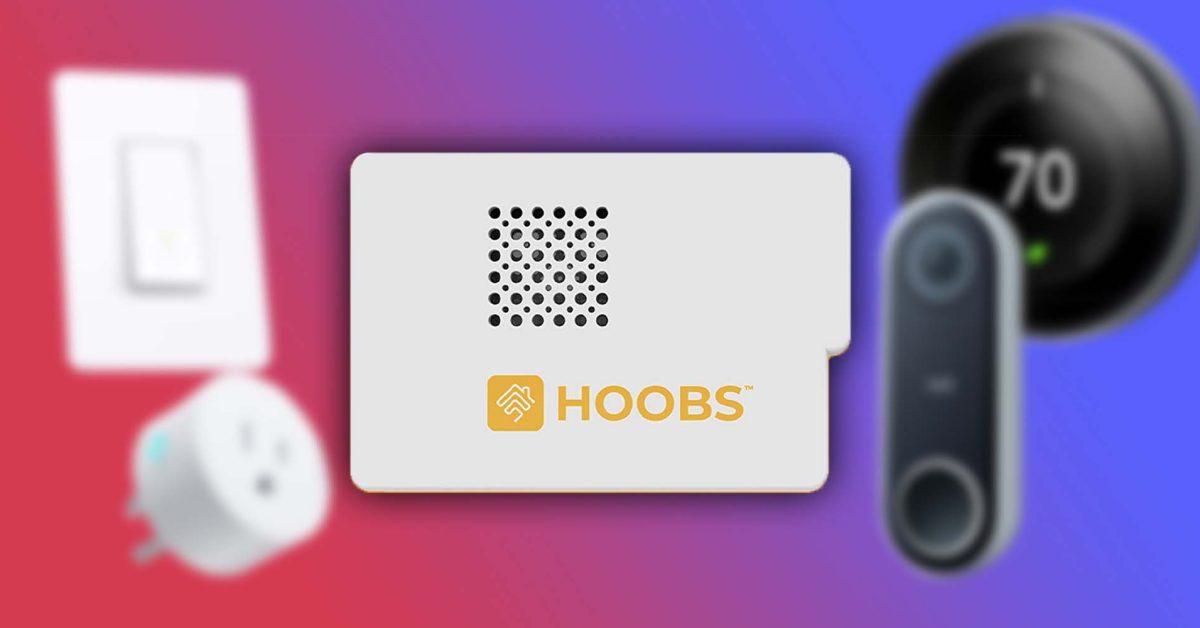
Unify your smart home with HOOBS – bring unsupported devices into Apple’s HomeKit [Video]

Unify your smart home with HOOBS – bring unsupported devices into Apple’s HomeKit [Video]

HomeKit’s ecosystem is fantastic, but the directly compatible devices can get expensive – especially if you already have incompatible devices at home that you need to replace. $25 for a smart plug, $40 for a door sensor – it really adds up quickly. There are plenty of other smart home devices available on Amazon, from $6 smart plugs to $25 cameras, outside the HomeKit ecosystem. Thankfully, many of these otherwise unsupported devices can be brought into HomeKit with the use of Homebridge software.

Video: Unify your smart home with HOOBS

What is Homebridge?

Homebridge is a piece of software that connects to an unsupported smart-home device in order to make it accessible through Apple HomeKit. There are thousands of smart home devices otherwise limited to Amazon Alexa or Google Assistant support that become accessible through Apple’s Home app with the use of Homebridge.

HOOBS

Homebridge can be run on Windows, Linux, macOS, or a Docker container, but I prefer to run it on a low-cost Raspberry Pi. I personally use HOOBS, which is an easy-to-use version of Homebridge with a nice web interface. HOOBS can be downloaded for free and installed on your own Raspberry Pi, or you can purchase an all-in-one box kit with it ready to go.

  • Raspberry Pi 4 kit: $149
  • HOOBS all-in-one: $249

Installing Homebridge on a Raspberry Pi

If you opt to install Homebridge/HOOBS yourself, it is actually very straightforward. Start by downloading the image. It’s free, but you can opt to donate a custom amount to support the software if you like. Be aware that you’ll have to put in payment details to download even if you’re not donating.

Once the “hoobs-##.xz” file is downloaded, you can use a program like balenaEtcher to flash the operating system to an empty micro-SD card. It is important that this SD card is empty, as flashing the image to it will entirely erase the card and any files left on it. The SD card can then be inserted into the Raspberry Pi.

The Raspberry Pi should be powered with a USB-C cable and connected to your home internet with an ethernet cable. You can set up HOOBS over Wi-Fi, but directly wiring it will provide more reliable results.

To connect to the HOOBS device, open your web browser and go to http://hoobs.local if you are on a Mac or http://hoobs on a PC. On your first visit, you will be asked to set up an account, then you will be greeted with the interface. This is the web interface you will use to connect new smart home devices and add additional plugins.

Home Hub vs. Homebridge

The Raspberry Pi only serves as an interface between the non-HomeKit device on your network and an Apple device on your network. It will not function as a Home Hub, which is necessary to control smart home devices through the Home app away from the local network. This means that you will need one Apple device at your house powered on in order to control your home devices when you are not on your local network.

Setting up an Apple device as a Home Hub

As Apple describes, you can use a HomePod, HomePod mini, Apple TV, or iPad as your Home Hub device. A HomePod or Apple TV signed in with the same iCloud account as your Home will automatically become a Home Hub. To set up an iPad as a Home Hub, the iPad must be signed in to the same iCloud account that was used to set up your HomeKit devices. Then go to Settings > Home > Enable and choose Use this iPad as a Home Hub.

  • Apple iPad 10.2-inch: $319
  • iPad stand: $18
  • HomePod mini: $99
  • Apple TV 4K: $169

Adding smart home devices to Homebridge

Smart home devices to integrate with Homekit

Adding a Kasa smart light switch to HomeKit

I personally love smart light switches. They easily integrate with existing fixtures, and you don’t have to treat them like a smart device. You can still hit the switch like you would any other light; they just add the option of smart control. Kasa has multiple different options for these smart switches.

  • Kasa dimmer switch, three-pack: $49
  • Kasa light switch, three-pack: $35
  • Kasa three-way switch, two-pack: $34

First configure the switches in the Kasa Smart app on your phone. To connect with these switches (or other Kasa plugs or bulbs) to HOOBS it’s as simple as installing the Tplink Smarthome plugin. It automatically discovers the Kasa devices on the network to make them available through Apple’s Home app. Once your devices are added to HOOBS you’ll just have to link the bridge to Homekit as described below.

Adding a Nest thermostat and doorbell to HomeKit

By far my favorite devices to access through HomeKit are my Nest doorbell and thermostat. They have worked flawlessly in the Home app with live camera view, two-way speaking, and temperature control.

  • Google Nest Learning Thermostat: $199
  • Google Nest wired doorbell: $149

Start by setting up your Nest smart home devices in the Nest app, then head over to HOOBS and install the Nest plugin. On the configuration page, select link account. A new popup will open, so check that your browser didn’t block it. Log in to your Google account – the same one used in the Nest app – then copy the provided code and paste it in the next step. Just like that, your Nest devices are connected to HOOBS.

Nest doorbell integrated into Apple Homekit.

Adding cameras to HomeKit

Adding Blink cameras

Blink cameras are a very low-cost way to add cameras to your smart home. Blink offers a paid subscription for cloud storage of video, but you can also use the Blink sync module to store the clips locally on a USB drive without paying for cloud storage. The Homebridge integration with the cameras is still a work in progress, but the current version offers camera thumbnails, temperature readings, occupancy sensors, alerts, and the ability to arm/disarm the security system. The biggest limitation is the live view, which is currently only working for first-generation cameras.

  • Blink camera mini: $34
  • Blink outdoor and floodlight: $139
  • Blink sync module 2: $34

After getting your Blink cameras set up in the Blink app, install the Blink For Home HOOBS plugin. Enter the configuration and input your login credentials. On the first run, you will get a text message with the two-factor authentication code. Plug that code into the PIN requested in configuration, and you should be good to go.

Adding Wyze cameras

As I mentioned above, the Blink cameras still need a bit of improvement before they can provide a flawless experience. If you want a more full-featured experience and are willing to put in the time, Wyze cameras are a good option. Just be aware that setting them up takes a lot more work, including modified firmware. With the modified firmware, you can add them to HOOBS as you would a standard IP camera.

Adding existing IP cameras to Homekit

It’s easy to add a standard IP camera to HomeKit using HOOBS. Start by installing the Camera FFmpeg plugin. From there, you can add a camera under the configuration column. You will need the RTSP URL as well as a still-image URL. While adding the URL is all you have to do, you can adjust more specific options, such as the resolution, bitrate, frame rate, encoding method, and add multiple cameras.

Adding unsupported smart outlets to HomeKit

The Tuya and Smart Life apps are supported by almost all of the low-cost smart outlets and myriad other devices available on Amazon. Thankfully, the Tuya Web plugin can also bring all of these accessories into HOOBS and HomeKit. Beyond general smart outlets, you can also bring fans, dimmers, blinds, thermostats, and more devices into HomeKit.

  • Single smart plug four-pack: $22
  • Energy monitoring smart plug two-pack: $19
  • Outdoor-rated dual-smart plug: $19

Start by adding all your smart outlets and other Tuya-compatible devices to the Smart Life app. Then, add the Tuya Web plugin to HOOBS and enter the configuration page. Enter your country code (1 for the US), select your platform (Smart Life), and enter your log-in credentials. It’s as simple as that!

Bringing bridged devices into the Home app

Bringing smart home devices from HOOBS to Apple’s Home app is simple.

Open the HOOBS web interface and go to the Bridges tab. From there, select the desired bridge. Open the Home app, select +, and choose Add Accessory. Scan the QR code provided by HOOBS to bring the accessories on that bridge into HomeKit.

After scanning, you will have the opportunity to name your smart home devices, choose an icon, and select which room they belong in.

Using other voice assistants to control Homebridge devices
Google Home Apple Homekit Amazon Alexa

While the main purpose of Homebridge is to bring all your devices into HomeKit, it also unifies all your smart-home devices. This is where Amazon Alexa and Google Assistant support really show their value. You can bring all your smart home devices together with Homebridge, then use whichever smart speaker you have to control them. Why spend $100 on a new Apple HomePod mini for every room if you already have an extra Echo Dot lying around?

Adding Alexa support to Homebridge

The Alexa plugin allows you to control any Homebridge-controlled devices with any of your Amazon Alexa devices – even the Astro household robot. After installing the Alexa plugin, you’ll need to set up an account for the skill.

Enter your login credentials in the HOOBS Alexa plugin configuration page. Then, install the Homebridge Alexa skill in the Amazon Alexa app and link the skill to your account.

Adding Google Assistant support to Homebridge

Google Assistant support has been particularly useful for me as I now use a Pixel 6 Pro. While most devices around the house have integration support with Google assistant through their respective apps, using HomeBridge makes adding all the devices from different apps at once extremely simple.

The plugin to connect to your Google account is Gsh. Install the plugin, then go to the configuration page. From that page, select Link Account and sign in to your Google account. From the Google Home app on your Android or iOS device, select Plus in the upper left corner > Set up device > Works with Google > and add the Homebridge service. From there, log in with the same Google account.

The Homebridge-connected devices will show up under Linked to you. You can then move each device to the desired home and room within the Google Home app.

The downsides of Homebridge

Homebridge and HOOBS are fantastic solutions. The software allows otherwise totally unsupported devices to be integrated into HomeKit. There are other bridges available, but these tend to be very brand-specific devices. Using HOOBS, you can use almost any smart device with HomeKit, Amazon Alexa, or Google Assistant. But, it isn’t a perfect solution.

Getting the setup right for devices is a bit more complicated. When I was installing the TPLink smart plugin, the HOOBS web interface froze, and I had to unplug my Raspberry Pi to get it unfrozen. Once it was set up, however, I haven’t had any issues. Everything has been working as expected.

There are also security considerations. I am comfortable using the software and the various plugins in my home, but native HomeKit devices are arguably more secure than installing HomeBridge plugins that rely on cloud services.

Is Homebridge the solution for you?

That certainly depends, but if you have myriad apps on your phone all with the dedicated purpose of controlling one of your many smart devices, Homebridge or HOOBS could certainly be a great solution. It allows you to uninstall or move all those apps to the App Library while you use Apple’s Home app or Siri for almost every smart home-related need.

If you’re just a bit tech-savvy, it doesn’t take too long to set up, and you can add way more smart home devices than work natively with HomeKit. And, with each non-compatible device you bring into HomeKit, you can save money over the native options. There is even support for HomeKit Secure video now through scrypted.

Do you have favorite smart home devices? Let us know in the comments down below!
https://i0.wp.com/9to5mac.com/wp-content/uploads/sites/6/2021/12/HOOBS-featured.jpg?resize=1200%2C628&quality=82&strip=all&ssl=1

iOS 15.5 beta blocks ‘Sensitive Locations’ for Memories in Photos app

iOS 15.5 beta blocks ‘Sensitive Locations’ for Memories in Photos app

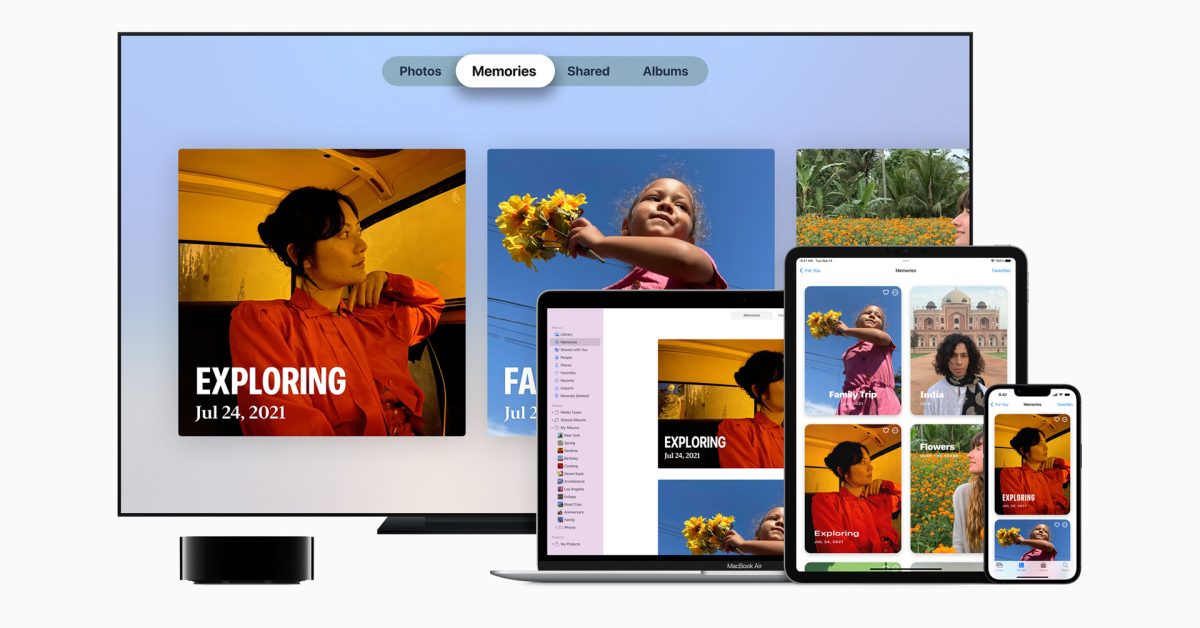
Apple today released the third beta of iOS 15.5 to developers, and while the update doesn’t seem to have any significant changes, Apple has made an interesting tweak to its native Photos app. The system will now block “Sensitive Locations” for Memories in the Photos app.

For those unfamiliar, Memories is a feature of the Photos app on iOS and macOS that recognizes people, places, and events in your photo library to automatically create “curated collections” with a slideshow. Since this feature is entirely based on machine learning, Apple has now made some changes to the app to avoid creating some unwanted memories.

As 9to5Mac analyzed in the iOS 15.5 beta 3 code, the Photos app now has a list of “Sensitive Locations,” so that any photos taken there will never be added to a memory. Interestingly, all the places banned in this version are related to the Holocaust.

Here’s the list of places that are blocked from the Memories feature in the Photos app with iOS 15.5 beta 3:

  • Yad Vashem Memorial
  • Dachau concentration camp
  • US Holocaust Museum
  • Majdanek concentration camp
  • Berlin Holocaust Memorial
  • Schindler Factory
  • Belzec extermination camp 
  • Anne Frank House
  • Sobibor extermination camp
  • Treblinka extermination camp
  • Chelmno-Kulmhof extermination camp
  • Auschwitz-Birkenau concentration camp

Each location has latitude, longitude, and radius assigned, so that the Photos app will ignore images taken at these locations when creating new memories. Of course, Apple can update this list with new places with future iOS updates.

iOS 15.5 beta also brings changes to the Wallet app and reveals upcoming changes to Apple Pay. It’s unclear when exactly the update will be released to the public.

Read also:

  • iOS 15.5 beta 1 changes and features: Wallet updates & handy new HomePod feature [Video]
  • iOS 15.5 includes support for apps with external purchases
  • iOS 15.5 hints at Bancomat and Bancontact on Apple Pay
  • Apple to rebrand iTunes Pass in Wallet app with iOS 15.5

https://i0.wp.com/9to5mac.com/wp-content/uploads/sites/6/2022/04/Apple-Photos-app-Memories.jpg?resize=1200%2C628&quality=82&strip=all&ssl=1

Overwatch 2: All the hero reworks in the beta

Overwatch 2: All the hero reworks in the beta

Overwatch 2‘s first beta is now live, giving players a taste of substantial changes coming to Blizzard Entertainment’s hero shooter. These changes include new team structures for five heroes, new heros, and significant reworks to many characters.

In the Overwatch 2 beta, players will find very different versions of Bastion, Doomfist, Orisa, and Sombra on the roster. Others heroes like Reinhardt and Cassidy have received key ability updates that allow them to update their kits in important ways. In general, there are fewer ways to stun enemies, and each role type has its own passive perks: tanks receive less knockback, damage characters get a speed boost, and all support characters automatically heal themselves over time.

Here’s a breakdown of the hero changes in Overwatch 2‘s beta test — and presumably going forward.

Bastion

The terrifying turret Bastion is seeing some of the biggest changes in Overwatch 2. He has lost his Self-Repair abilities, which means he cannot heal himself. He can still switch between Recon mode, his mobile form, and Assault mode, his tank form, but the latter now lets Bastion move and is on a cooldown. Bastion also has a new alt-fire attack, the A-36 Tactical Grenade, which fires a bomb that bounces off walls and explodes when it impacts enemies or hits the ground.

Bastion’s Ultimate ability has also been redesigned. Bastion no longer transforms into a mobile tank equipped with powerful cannons. Instead, it switches into Artillery mode and fires up to three artillery rounds at targets.

Doomfist

Overwatch - a cinematic listing all of the gameplay changes for Doomfist currently live in Overwatch 2

Image: Blizzard Entertainment

Doomfist moves from a damage role to a tank role, with a boost in health and a new Power Block ability, which protects him from the front and can empower his Rocket Punch. Doomfist has had his Rocket Punch, Seismic Slam, and Hand Cannon abilities tweaked. His shoryuken-style Uppercut ability was also removed. Meteor Strike, Doomfist’s Ultimate, will now activate faster and slow enemies upon impact.

Sombra

Sombra has been reworked to be a more dangerous hacker and a better damage dealer. Her Hack ability not only disrupts enemy abilities but also makes it easier to expose the location of hacked enemies to Sombra, her teammates and her entire team. Hacked enemies also take more damage from Sombra herself.

EMP, Sombra’s Ultimate, now deals 40% damage to enemies caught in the pulse’s radius, in addition to disrupting barriers, like Winston’s protective energy dome.

Orisa

A graphic listing all of the gameplay changes for Orisa in Overwatch 2

Image: Blizzard Entertainment

The centuaurlike defense robot Orisa is radically changing in Overwatch 2, starting with the removal of her Protective Barrier shield and her Halt! Graviton charge is an ability. Replacing those abilities are Energy Javelin, a new projectile that stuns and knocks back enemies, and Javelin Spin, which blocks projectiles, pushes back enemies, and gives Orisa a speed boost.

The new Ultimate for Orisa, Supercharger is Terra Surge. Orisa will be able to hunker down and sweep in enemies nearby, before unleashing a sudden surge of damage following a short charge. Fortify will also boost her during Terra Surge.

Orisa’s primary fire, Augmented Fusion Driver, is also changing. It now offers infinite ammo, but is governed by a heat mechanic.

Reinhardt

Reinhardt has now two charges for his Fire Strike projectile as part of Blizzard’s strategy to increase tank brawler capabilities. Reinhardt also enjoys greater control over his Charge attack and can cancel it out.

Winston

Winston in Overwatch 2

Image: Blizzard Entertainment

Winston’s Tesla Cannon now has a secondary fire mode: He can charge it up and release a ball of focused electricity.

Zarya

Zarya’s personal Particle Barrier and teammate-targeted Projected Barrier are now on a shared cooldown, meaning she could apply back-to-back bubbles for herself or simultaneously for two teammates, if necessary.

Cassidy

Overwatch cowboy Cassidy loses his Flashbang stun ability for something more damage-focused: Magnetic Grenade. That short-range grenade will home in on nearby enemies — hence the magnetic descriptor — and can stick to enemies, dealing additional damage on explosion.

Mei

Mei freezes some robots with her Ult in Overwatch 2

Image: Blizzard Entertainment

Mei’s days of freezing players with her Endothermic Blaster are over. Although her ice gun deals damage to slow down enemies but does not turn you into an Ice sculpture, it is no longer able to do so. Only Mei’s Ultimate, Blizzard, will completely freeze opponents now.

Brigitte

Brigitte’s Shield Bash does not stun enemies anymore. It will simply knock them back, dealing damage.

https://cdn.vox-cdn.com/thumbor/TOdSUmNeVPqmo03wCF475QBmgfA=/0x0:1920×1005/fit-in/1200×630/cdn.vox-cdn.com/uploads/chorus_asset/file/23418091/OVR_Base2_OnToronto_Sombra2_004a.jpg

Apple releases new firmware update for AirTag item trackers

Apple releases new firmware update for AirTag item trackers

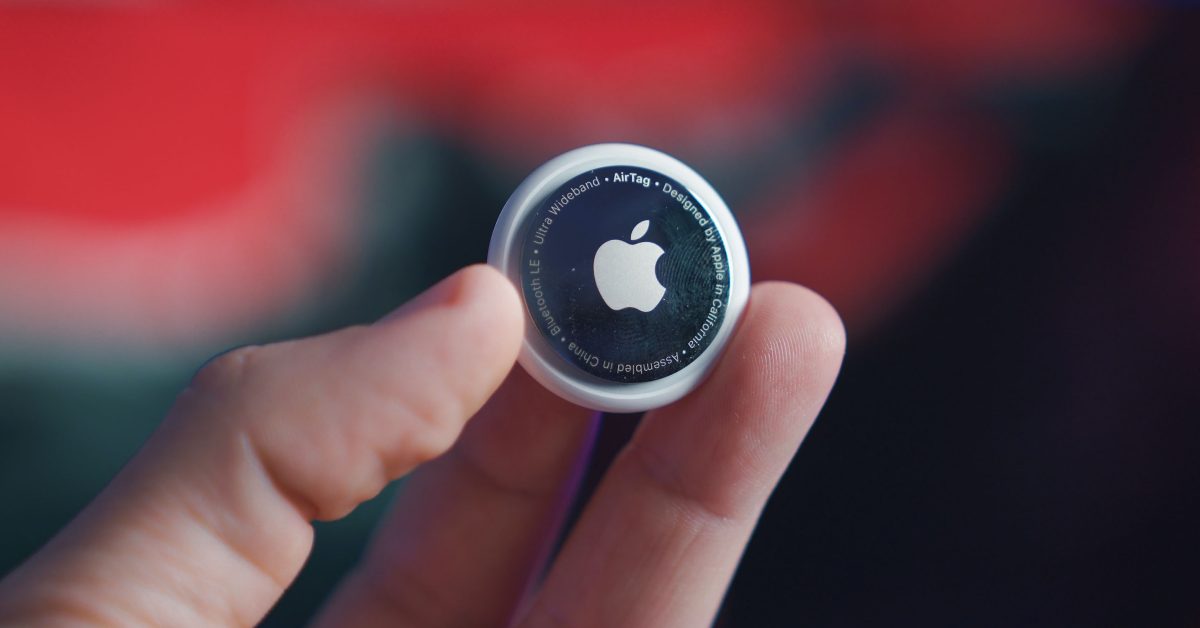
Seven months after releasing AirTag’s latest firmware update, Apple is now seeding a new version to owners of the item tracker. Here’s what you need to know about this new version.

Apple is beginning to roll out a new version of firmware to its AirTag item trackers, 9to5Mac has learned. The new version of AirTag firmware comes seven months after the previous release. Apple introduced an Android app that allows users to search for AirTags and made anti-stalking improvements for item trackers.

Today’s new firmware release is version 1.0. 391, and it features build number 1A301. Prior to today, the most recent version of AirTag firmware was version 1.0. 291 and featured build number 1A291e.

To check your AirTag’s firmware version, use the Find My app on your iPhone and then select the Items tab from the navigation bar. Then choose your AirTag from the list of items and tap on the name of your AirTag. This will reveal your AirTag’s serial number as well as the firmware version.

There is no way to force an upgrade. You can force an update by making sure that your AirTag is within reach of your iPhone.

It’s not clear what’s changed in the updated firmware version. However, we will update this story as soon as we find out more.

It is possible that the AirTag update today includes further improvements to anti-stalking technologies Apple has been developing since last year’s launch.

If you note anything different after updating the item tracker, let us know down in the comments section.

https://i0.wp.com/9to5mac.com/wp-content/uploads/sites/6/2022/02/AirTag-stalking-concerns-continue-university-study-underway.jpg?resize=1200%2C628&quality=82&strip=all&ssl=1

Categories
Uncategorized Uncategorized Uncategorized Uncategorized Uncategorized Uncategorized Uncategorized Uncategorized Uncategorized

D&D’s new Dragonlance could see incredibly powerful character builds

D&D’s new Dragonlance could see incredibly powerful character builds

Wizards of the Coast is taking another stab at its upcoming reboot of the Dragonlance setting, formally announced on April 21. These new playtest materials clearly state that they’ll be included in Dragonlance: Shadow of the Dragon Queen, a new book due out later this year. But they also hint at what may the most powerful set of character creation options yet.

Jeremy Crawford, game design architect for this project, detailed the changes in the YouTube video embedded above. After a chat about what isn’t changing from the original playtest materials, released in March, he gets to the meat of the matter: Characters are getting bonus feats, which are stunts that they can pull off during play. That’s because everyone at the table — even first-level adventurers — have already survived an apocalypse and emerged from it much stronger.

” In the context of The War of the Lance, Crawfor stated that characters in the crucible have gone through something unique compared to other D&D worlds. And so characters here have gone through a crucible that is unusual in comparison to many other D&D worlds.”

The Cataclysm, an event that takes away healing magic temporarily from Krynn’s world, is in-fiction. For a while, Krynn’s gods leave its peoples. Likewise, the dragons that are more common in Krynn than elsewhere, vanish for a time. And well, there’s this whole bit about a meteorite striking the planet. It’s a lot.

Although healing magic and dragons are back in the Shadow to the Dragon Queen , there is also an invasion of draconic powers. For that and other reasons Wizards has elected to essentially buff player characters. Players who choose one of the two new backgrounds in Unearthed Arcana: Heroes of Krynn Revisited will get a bonus feat at first level and another at fourth level.

“If you pick one of the two backgrounds [included in these new playtest materials] you get a free feat as a part of that background,” Crawford said. “Now we’re revealing more of the picture, and that is if you are playing a War of the Lance campaign you either pick one of those two backgrounds, or if you pick a background from any other source, if that background does not give you a free feat, you get to choose one from the list of feats that is in this new Unearthed Arcana.”

For those who enjoy power-leveling, custom lineages — an alternate rule first published in 2020’s Tasha’s Cauldron of Everything would potentially give a second feat at character creation, for a total of three bonus feats by fourth level. The new playtest materials are available for free download starting Monday.

Additionally, the kender race is being tweaked. The response on the original playtest materials was “mixed” Crawford says — which is why Wizards publishes playtest materials in the first place. This version goes “back to basics” he said and, designers hope, more accurately captures the first edition version of that race.

“When you go back to first edition products like Dragons of Mystery, […] it came down to again that mix of fearlessness, unstoppable curiosity, and this taunt that discombobulates people on the battlefield.”

Dragonlance: Shadow of the Dragon Queen arrives in late 2022, according to Wizards. It will launch alongside a compatible tabletop game, described as a novel “battle game” Designed by Rob Daviau (Pandemic Legacy) and Stephen Baker (Battle Masters) that can be used to directly impact the events of the role-playing campaign.

https://cdn.vox-cdn.com/thumbor/y2BaBRUv5GP6ZZd5F8xwJ3dkqjw=/0x215:3000×1786/fit-in/1200×630/cdn.vox-cdn.com/uploads/chorus_asset/file/23407250/dragonlance_2_copy.jpg

Galaxy A13 5G support page goes up in Greece as European launch nears

Galaxy A13 5G support page goes up in Greece as European launch nears

The Samsung Galaxy A13 (4G) is already available in parts of Europe. The 5G model is still nowhere to be seen on the Old Continent months after it launched in the US. That is about to change as a support page for the SM-A136B/DSN, aka Galaxy A13 5G dual-SIM, has appeared on Samsung Greece.

Galaxy A13 5G support page goes up on Samsung Greece, hinting at a European launch

The 4G model is available through partner stores at a regular price of EUR200 and a discounted price of EUR180 (e.g. Germanos). The 4G phone can also be found in other countries at various prices, e.g. in the Netherlands, where a 64 GB unit can be had for EUR174, and in Germany (EUR190). The older Galaxy A22 5G started at EUR250, but can currently be found for EUR210-EUR230, which puts an upper limit to the reasonable pricing of the A13 5G.

What does the Galaxy A13 5G has that its 4G sibling doesn’t have? Well, besides the next-gen connectivity, it also has a more powerful Dimensity 700 chipset (with two A76 big cores instead of all A55), along with a Mali-G57 MC2 GPU (vs. G52).


Samsung Galaxy A13 5G highlights

Samsung Galaxy A13 5G highlights

The rest is a mixed bag. The 5G model has a 90 Hz IPS LCD, though at a lower resolution (HD+ vs. FHD+), it also keeps the 50 MP main camera, but loses the 5 MP ultra wide. The battery is the same, 5,000 mAh capacity and 15W charging. This is a comparison of the two batteries.

Source (in Greek) | Via (in Dutch)

https://fdn.gsmarena.com/imgroot/news/22/04/samsung-galaxy-a13-5g-greece-support-page/-952x498w6/gsmarena_000.jpg

Categories
Uncategorized

The most powerful M1 MacBook that Apple never built…

The most powerful M1 MacBook that Apple never built…

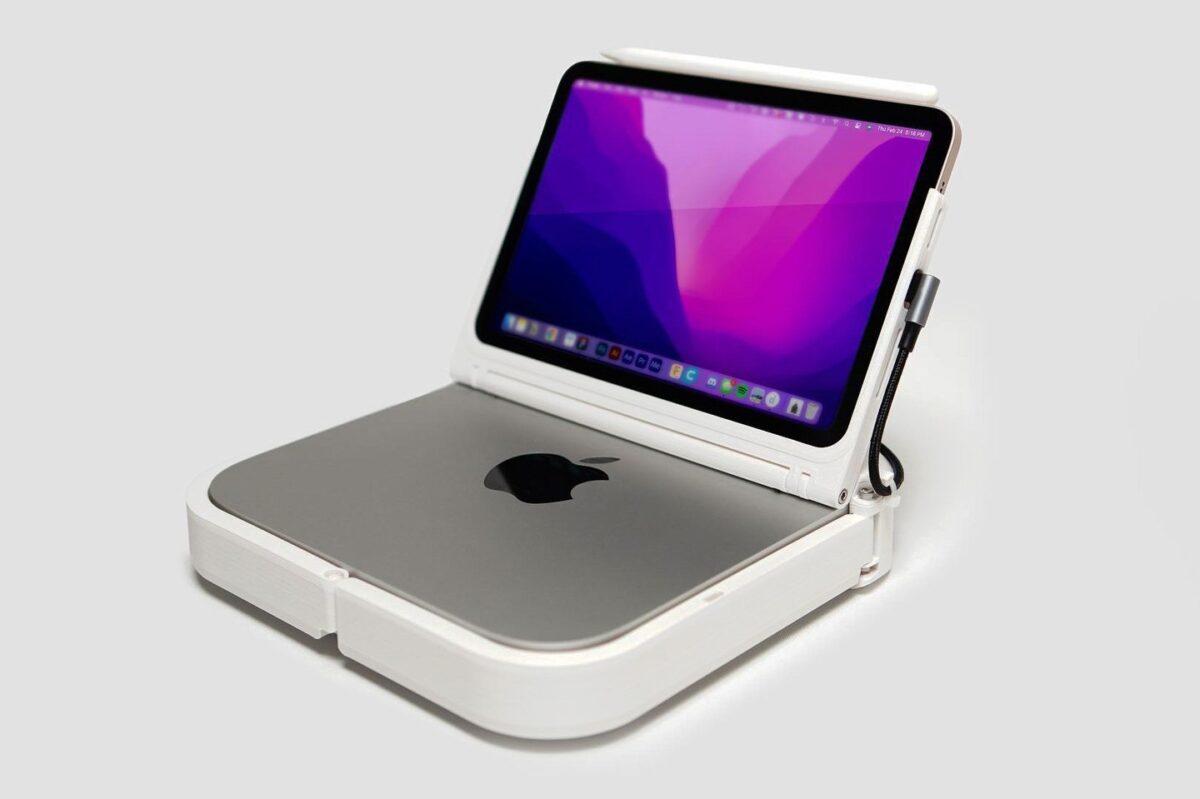
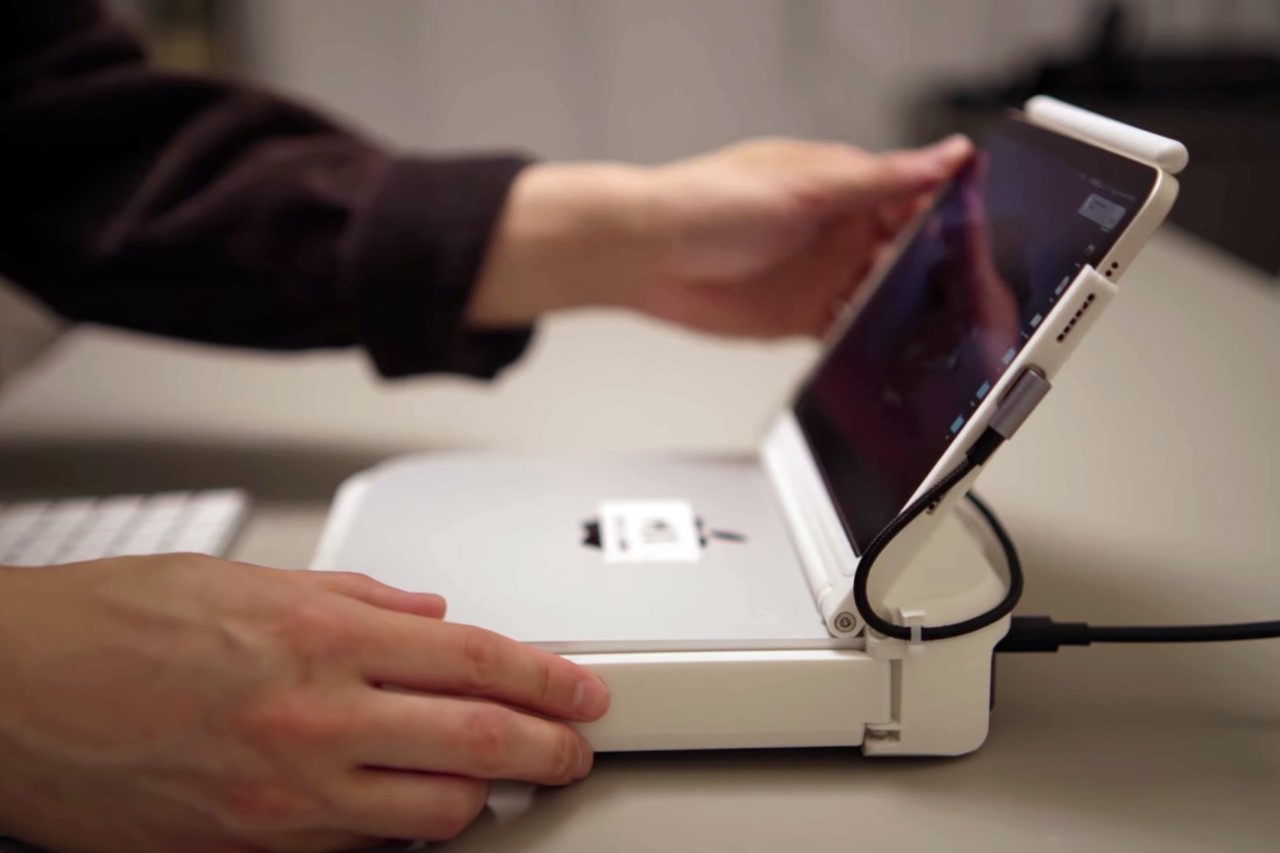
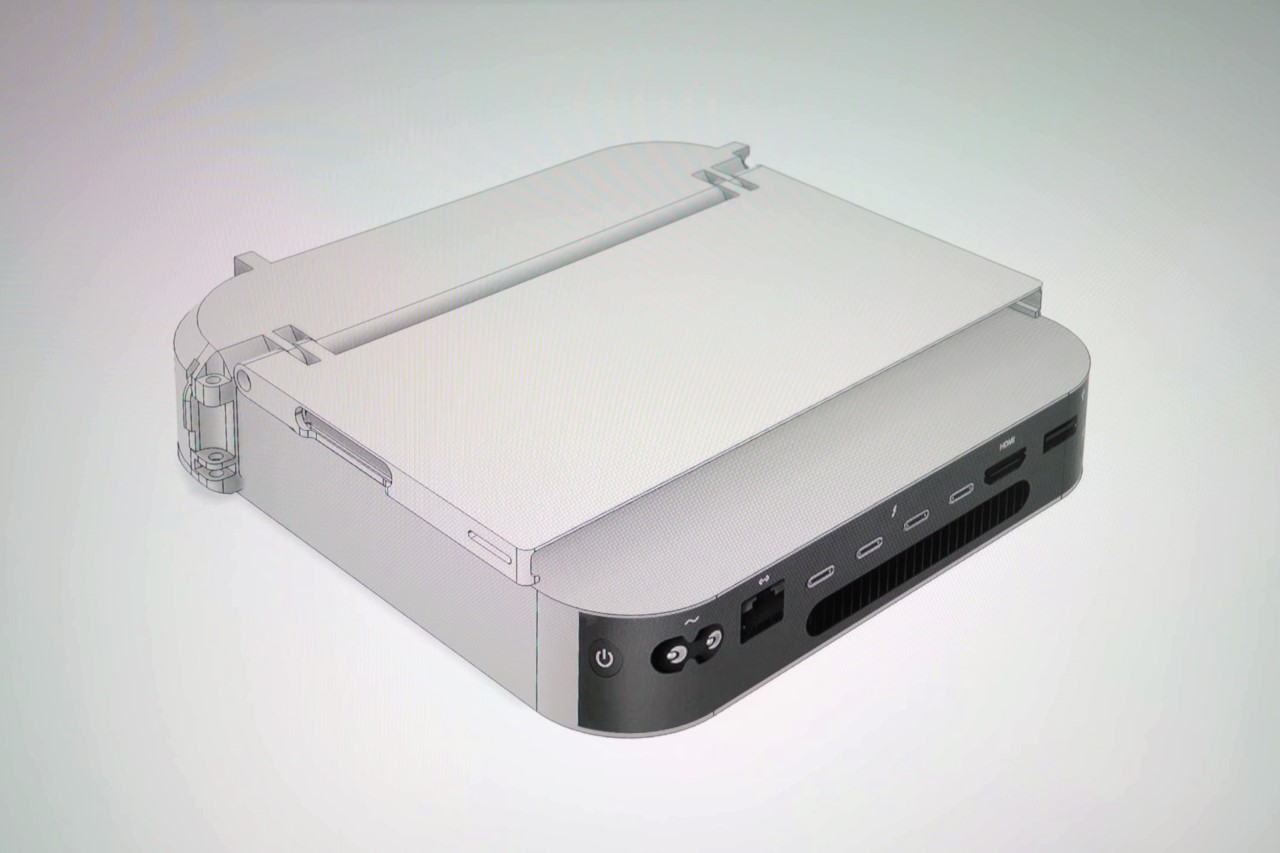
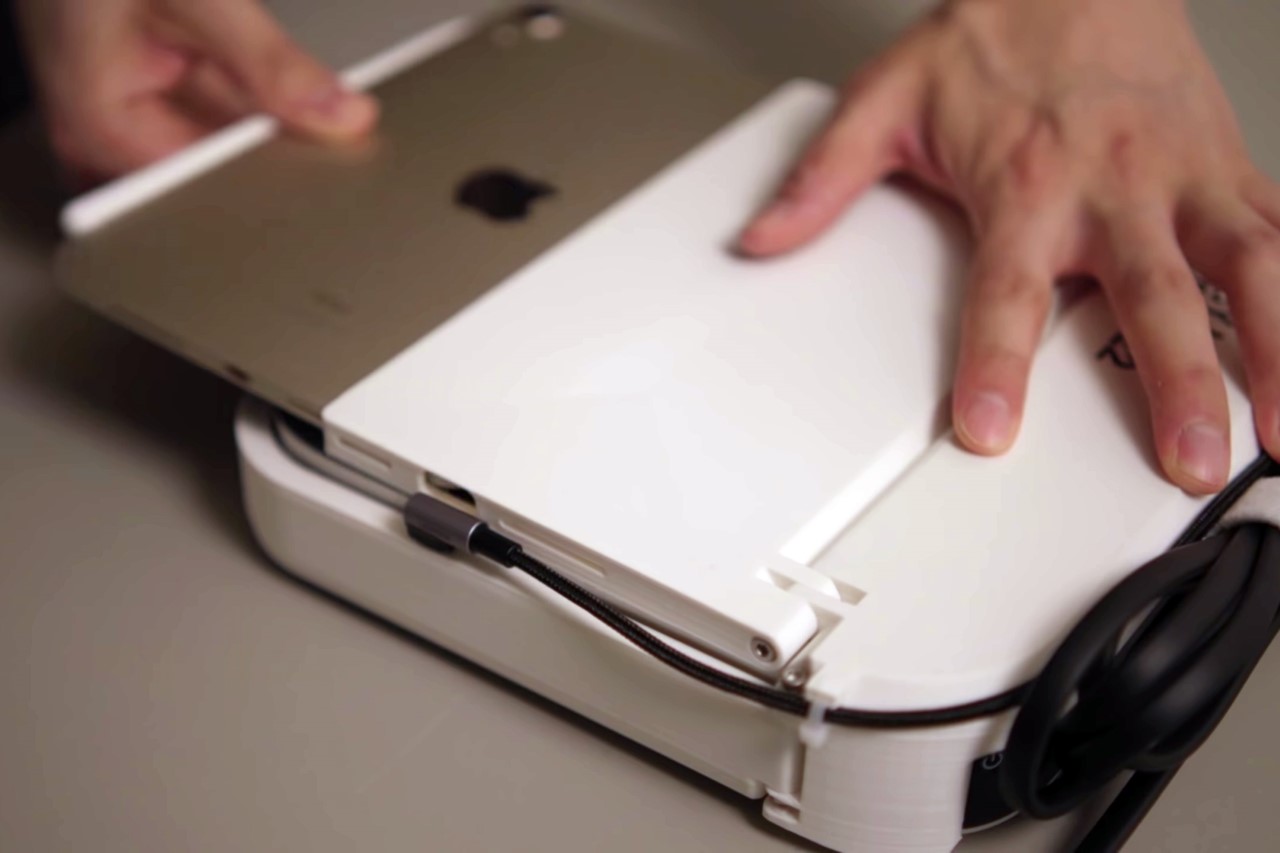
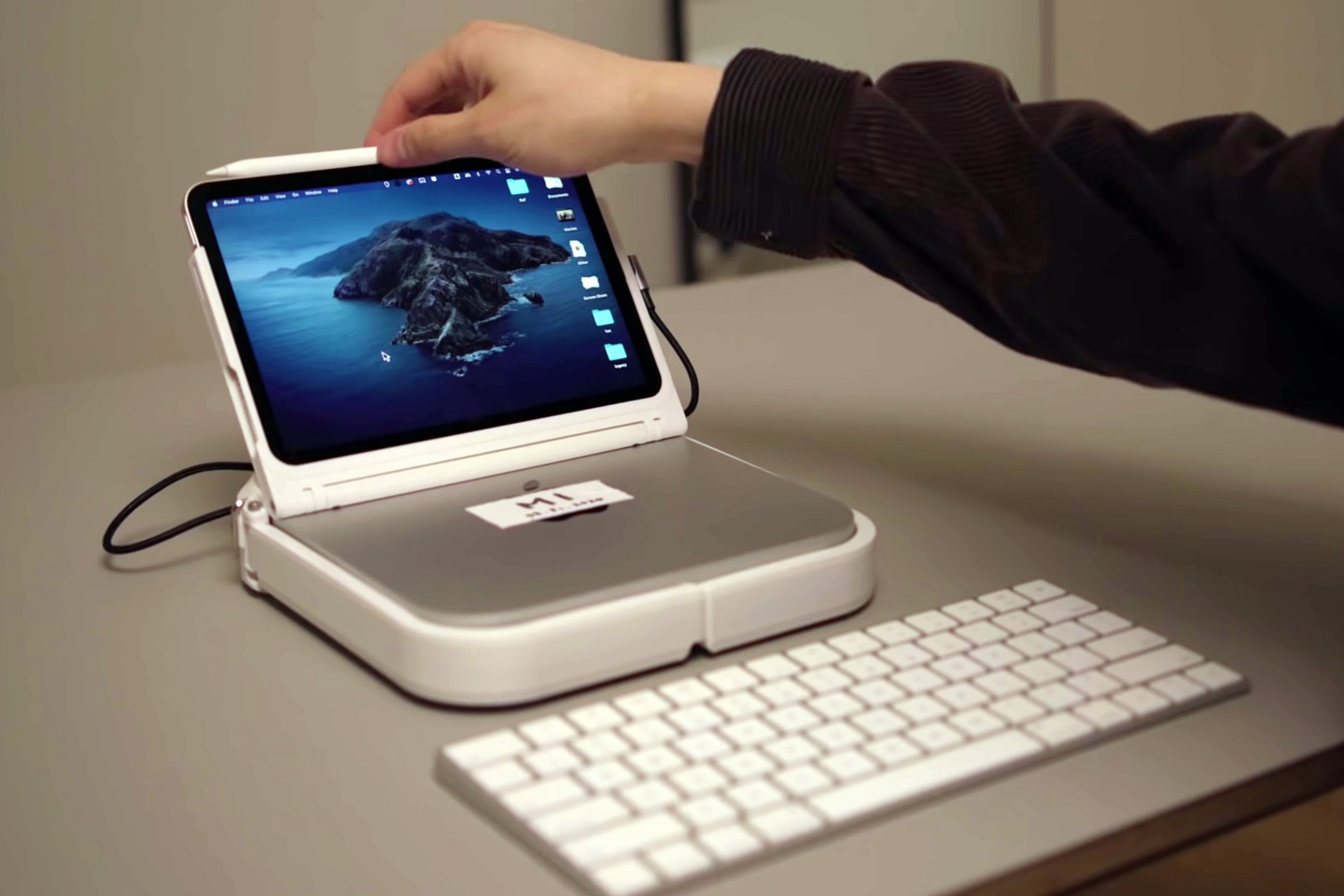
This Frankenstein monster of a laptop basically attaches an iPad Mini onto an M1 Mac Mini, giving you a laptop with more ports and better performance than a MacBook Pro while still being a (theoretically) portable laptop. This laptop is not a notebook. It also features a touchscreen with Apple Pencil input.

YouTuber Scott Yu-Jan hates laptops, as he so thoroughly expresses throughout his video (he even punches a hole through one for emphasis). He argues that laptops may be very powerful but they are not designed to replace sleekness. Even the most top-of-the-line laptop today is still under an inch thick. The purpose of laptops is to be portable and easy-to-carry. Scott believes that a laptop without wires is the best. It should be portable, but it doesn’t necessarily need to be sleek. Scott’s MacMiniBook, or MacBook Mini, is a cleverly crafted solution that proves his point. Sure, it isn’t sleek, but it doesn’t pull punches. With an M1 chip on the inside that lifts well above its weight, Scott’s creation comfortably bridges the gap between the laptop and desktop experience. In fact, parts of the video above were even edited on Scott’s MacGyvered MacBook Mini.

Designer: Scott Yu-Jan


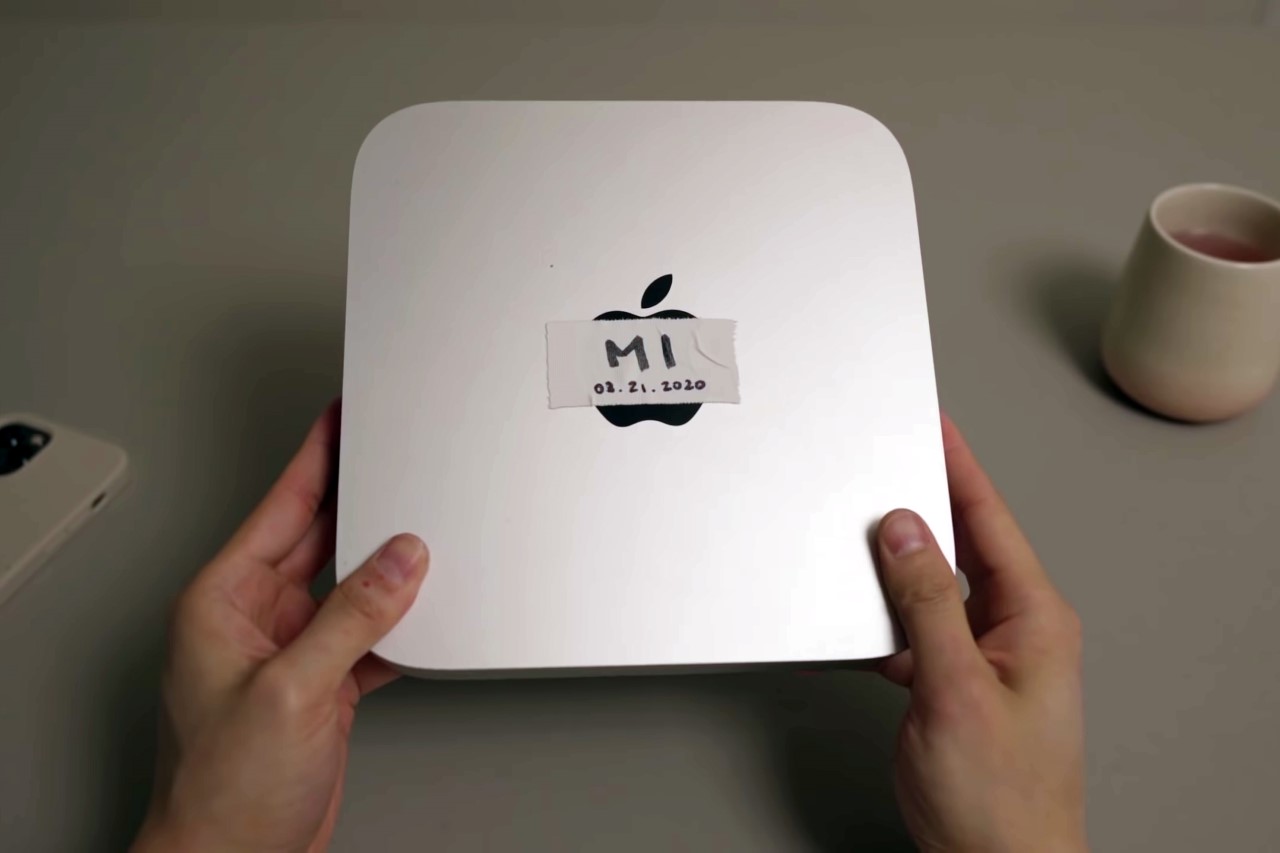
Scott started his experiment by just getting a Mac Mini. He then began to wonder how to get there. But, things took off when, for fun, he placed his iPad Mini on the Mac Mini to see that the two were identical in size. What were the odds, eh?! Apple seems to take nomenclature very seriously.

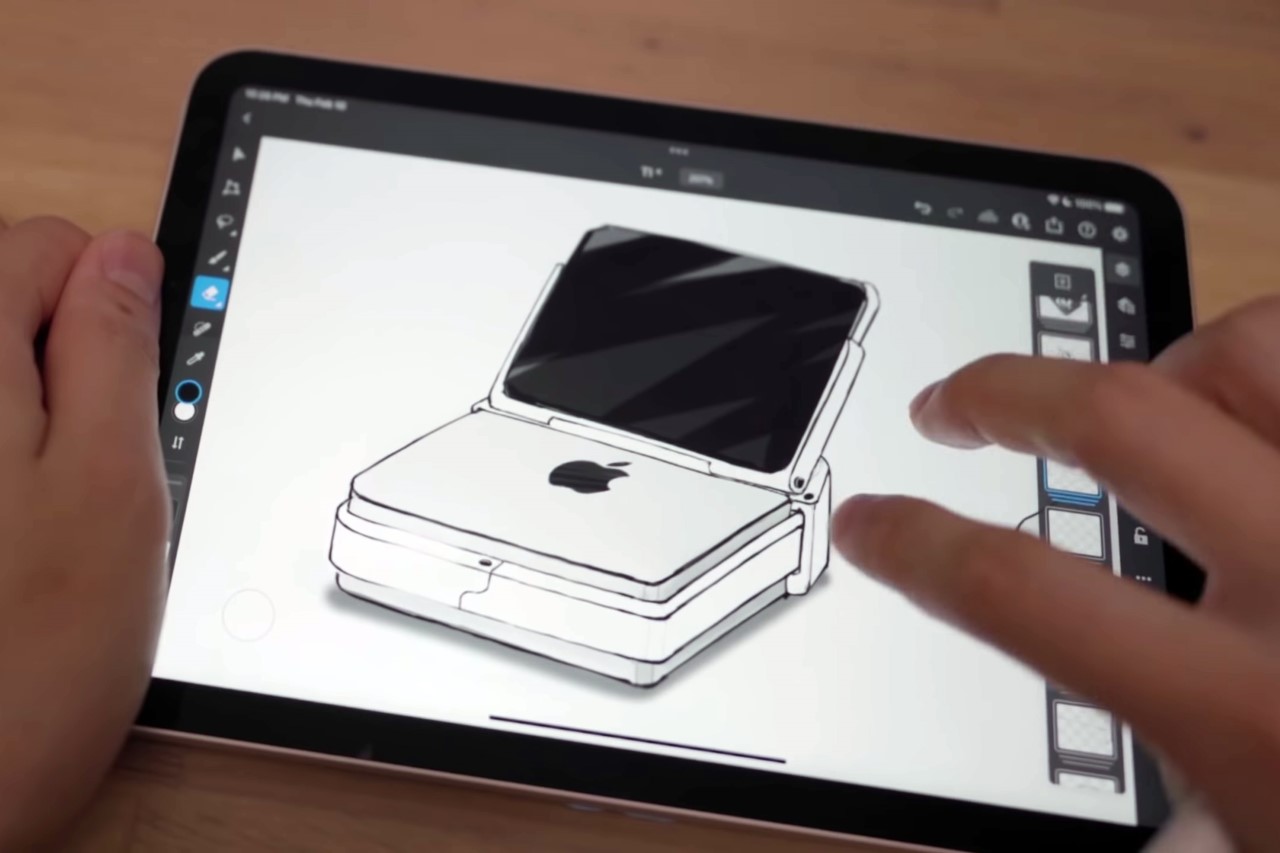
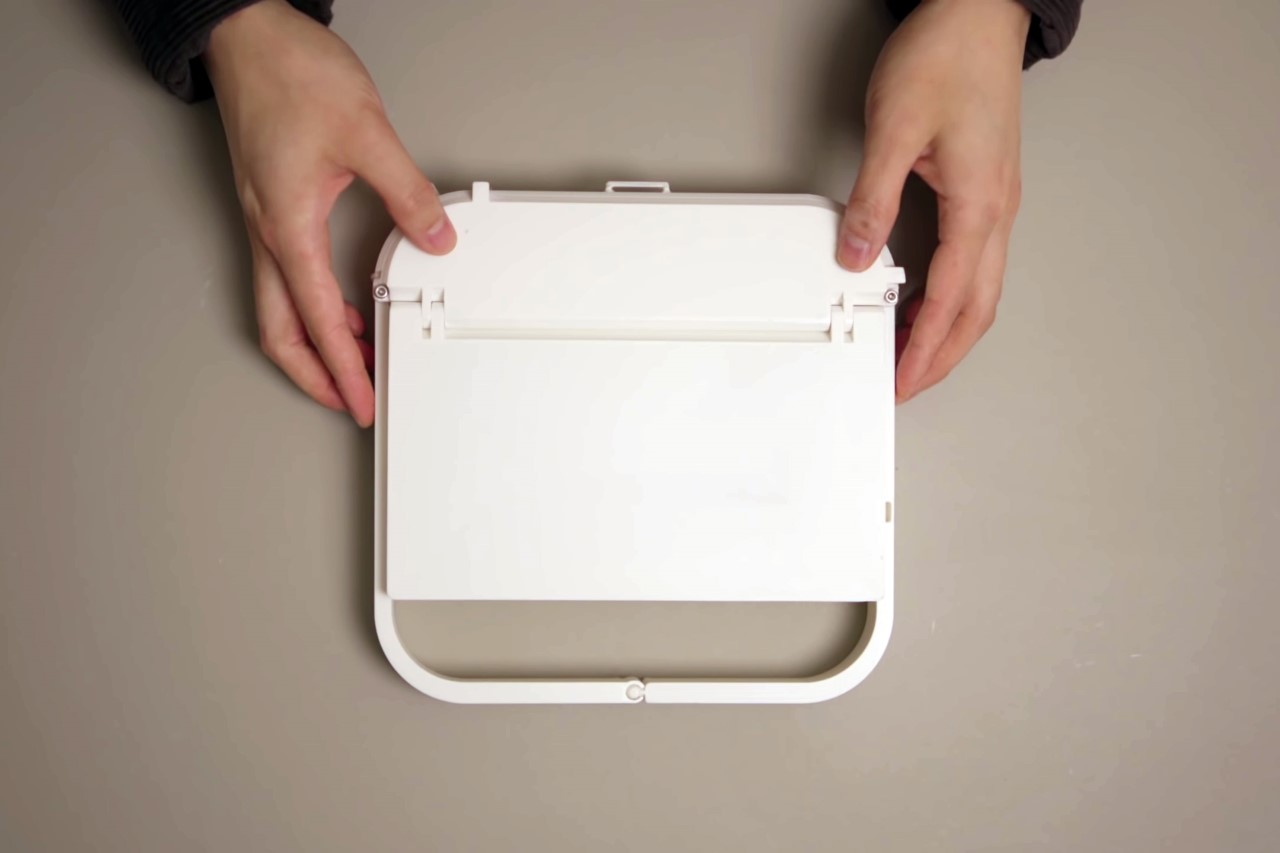
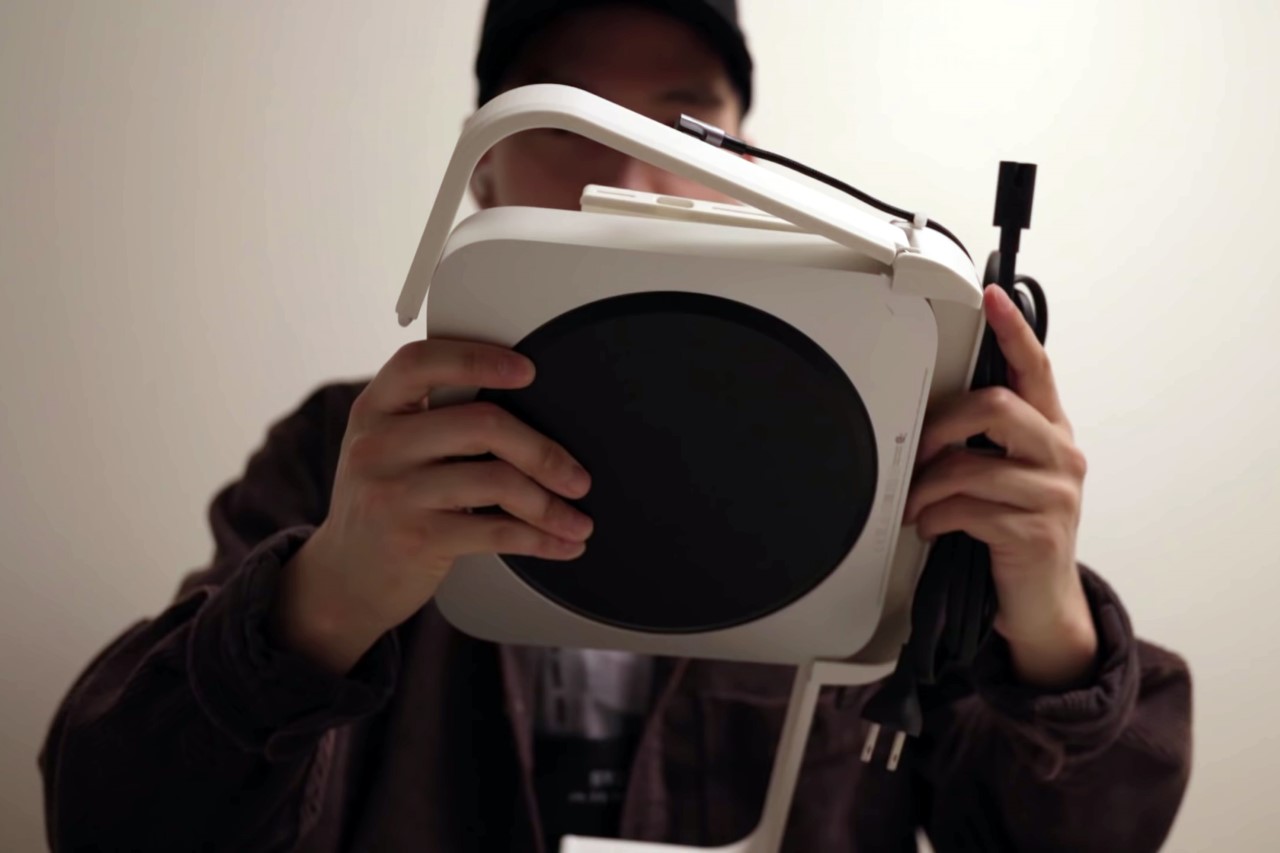
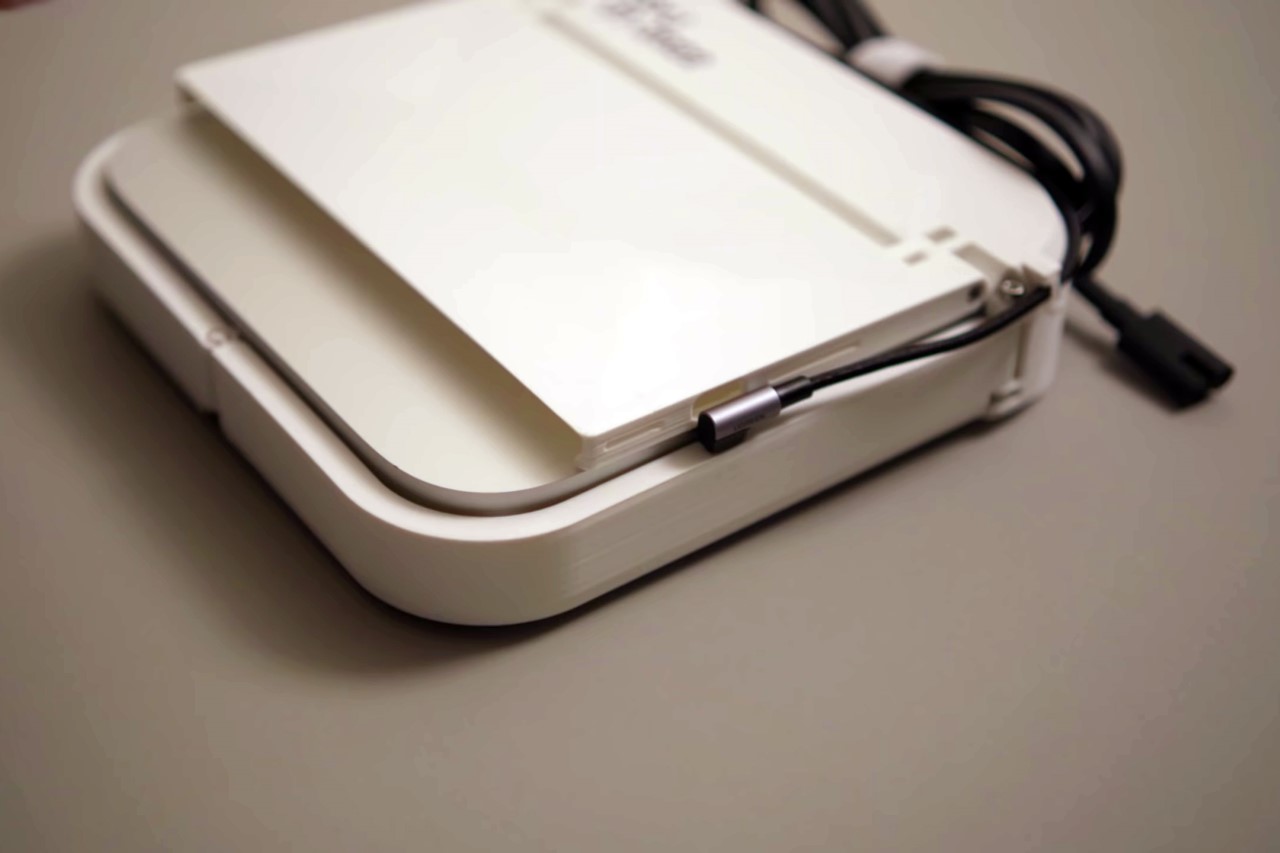
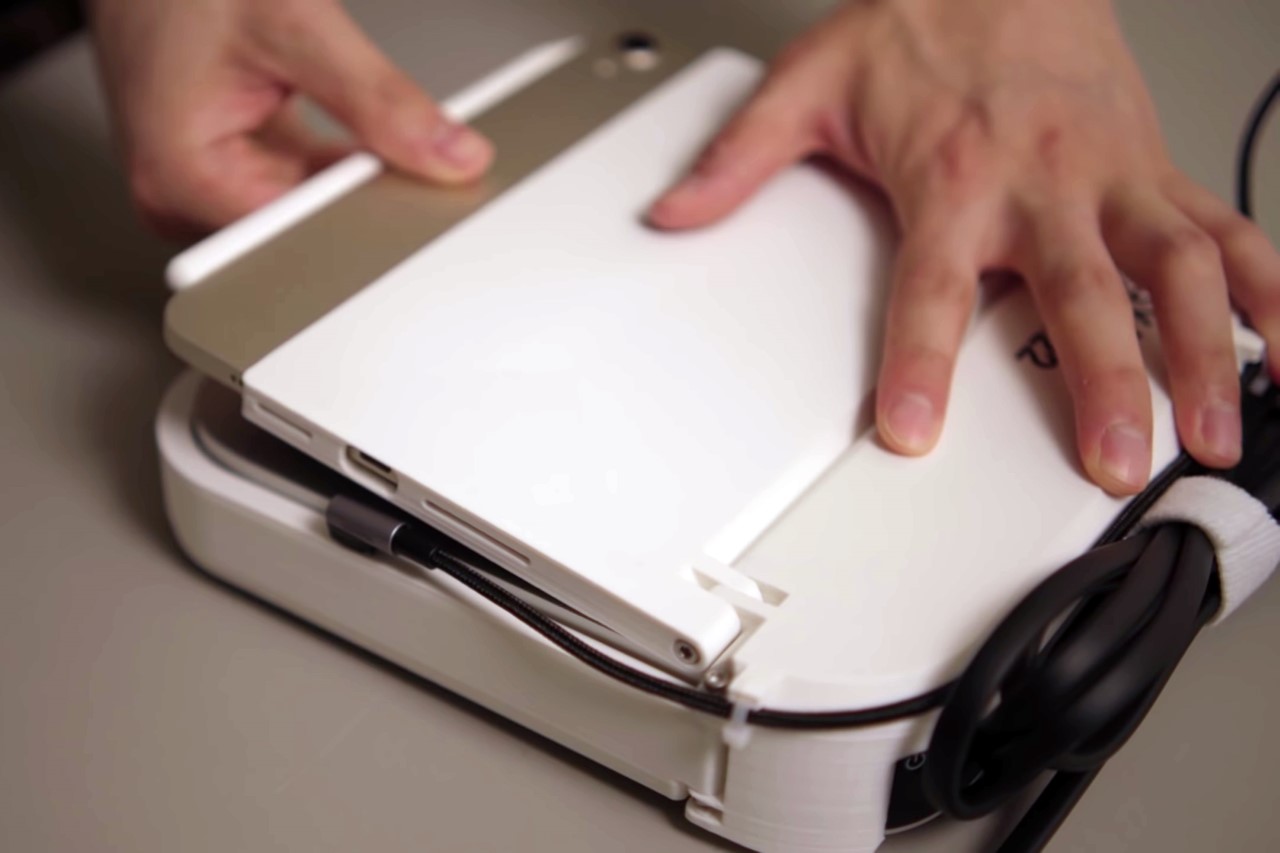
Once the perfect CPU and Display combo were picked out, it was just a question of merging them together into a rather chunky looking laptop. Scott designed, modeled, and 3D printed his housing in multiple parts, complete with openings for ports and cables, and even a friction hinge that would let you adjust your iPad to any angle you wanted.


Scott’s solution is what the internet would call ‘thicc’. It isn’t elegant by a far stretch, but it’s job isn’t to look elegant, it’s to outperform every laptop out there – a claim that Scott was pretty confident about once his solution was ready.

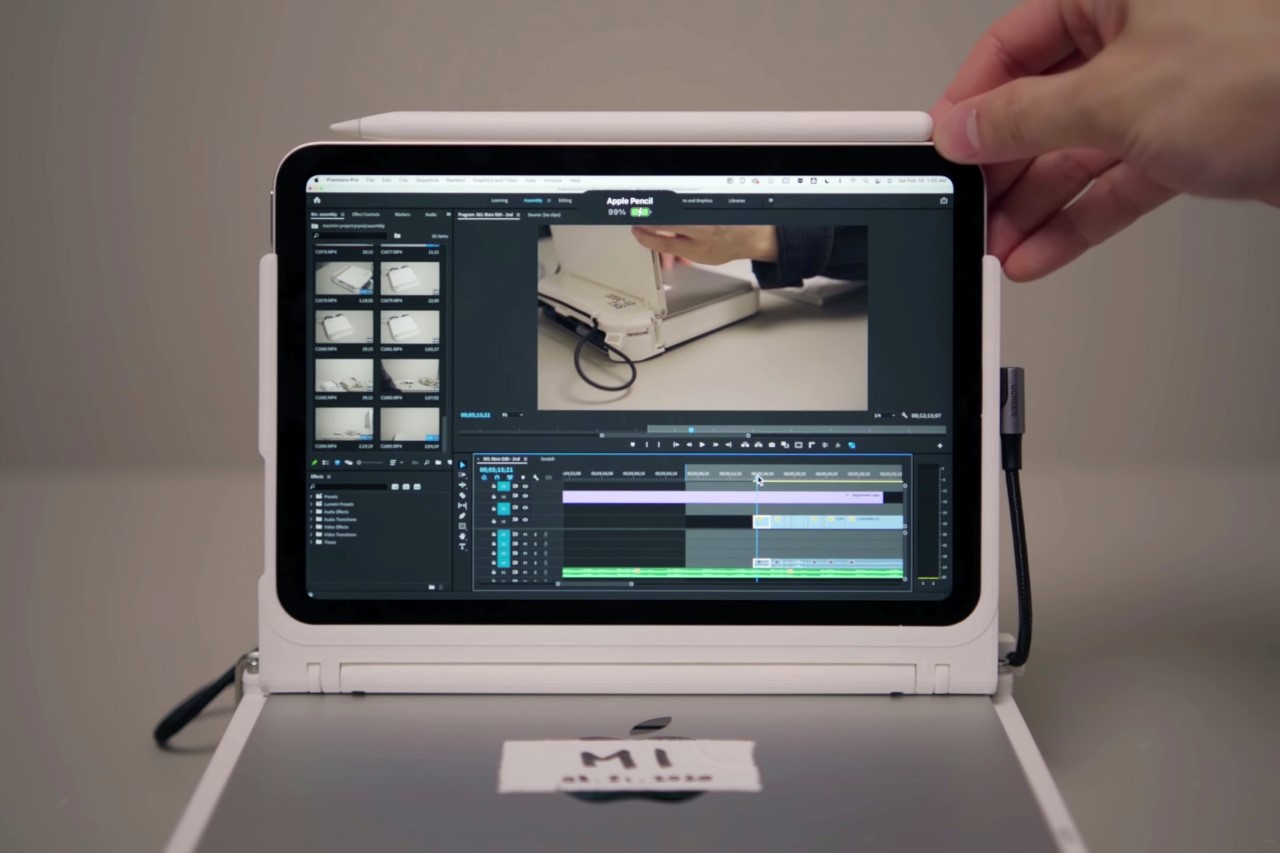
To run his mad machine, the iPad would have to work as an external display, rather than a tablet. Scott’s app of choice was Duet, using it to create an external screen for his M1 Mac Mini. A USB-C cable both beamed video information to the iPad, while keeping it charged. Scott could still use his Apple Pencil by docking it at the iPad’s upper edge.

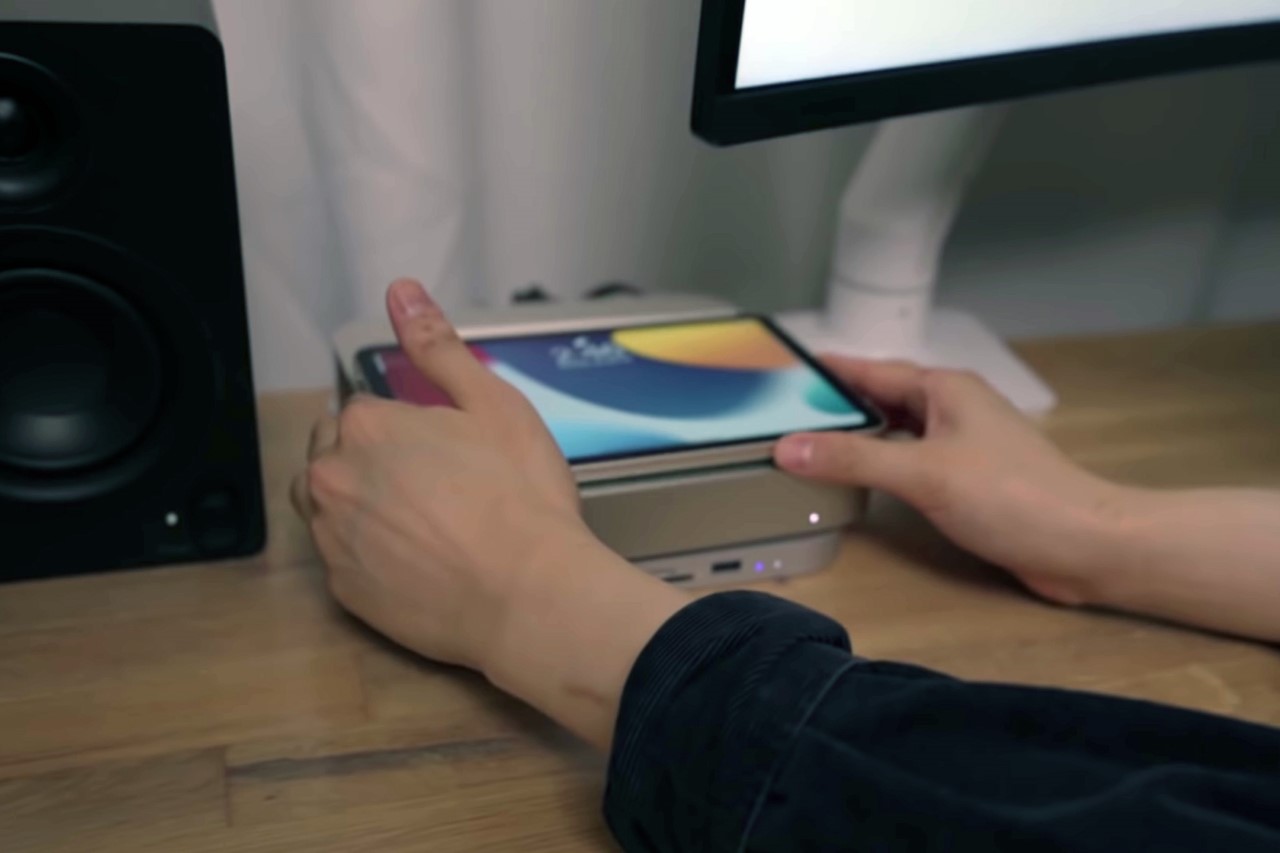
Scott’s creation is undeniably bonkers, but it is an incredibly powerful device on paper. The M1 chip handles complex tasks without consuming power or causing the cooling fans to go crazy. Scott demonstrated this by even editing a 2K video on it. However, the Frankenstein MacBook has a few flaws. First, the MacBook doesn’t come with a battery. This means that you will need to be connected to an electrical source in order to use it (unless you are using the iPad). In the second place, Scott said that he is more comfortable with a Magic Keyboard than a keyboard and trackpad. Finally, using the machine takes a little getting used to. First, switch on the Mac Mini, iPad Mini, and Duet separately. While shutting your laptop down, you need to switch the Mac Mini off too, given that closing the lid doesn’t snooze this laptop. Even the webcam placement may bother a few, and finally, the presence of 2 cables that are a permanent fixture may irk a few people… especially the design team at Apple!

https://www.yankodesign.com/images/design_news/2022/04/the-most-powerful-m1-macbook-that-apple-never-built/mac_mini_ipad_laptop_hero.jpg

Steam Deck lock screen now available after update

Steam Deck lock screen now available after update

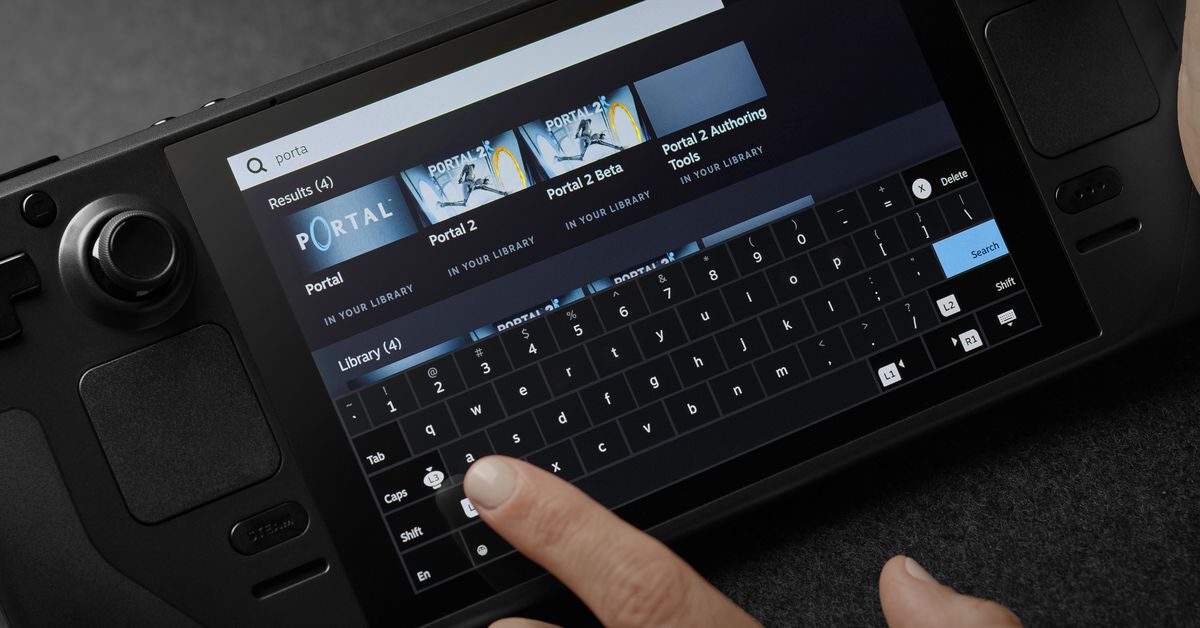
Steam Deck has a new operating system upgrade that includes a lock screen. Now, owners of Valve’s handheld PC gaming device can set secure it with a six-digit PIN to wake it, boot up, log in, or switch to Desktop mode — or any combination of the above.

In addition to the new lock screen feature, the latest Steam Deck patch also includes an updated achievements page, which will load faster and also have a toggle for global stats and your friends’ stats; localized keyboards for 21 languages; and the ability to switch between multiple windows within a single game or app. The full patch notes can be found on the Steam website; a more top-level version is available if you don’t need the finer points.

The Steam Deck, which lets users play their Steam PC gaming library on the go, launched on Feb. 25 after several delays to production, most of them linked to supply chain and other logistical challenges caused by the COVID-19 pandemic. The Steam Deck is in very scarce supply, and swamped by so many preorders last summer that some units are not scheduled to arrive till sometimes after September 2022. Valve stated earlier in the month that the company will increase production and ship the gaming portable device.

https://cdn.vox-cdn.com/thumbor/hINOPwb0iCOtH-w7e4pAJO3UikQ=/0x94:4800×2607/fit-in/1200×630/cdn.vox-cdn.com/uploads/chorus_asset/file/22720192/Steam_Deck_touchscreen.jpg

New Apple Card promotion offers $75 Daily Cash bonus for new referrals

New Apple Card promotion offers $75 Daily Cash bonus for new referrals

Apple has reintroduced a lucrative Apple Card promo for its new customers. The company announced today that new users to Apple Card, who are referred by existing users, can secure a $75 bonus after making their first purchase. This bonus is in the form Daily Cash

In an email sent to Apple Card holders, the company stated:

Hey Chance, you probably know this already, but we love having you as an Apple Card customer. Right now, for a very limited time, you can help your friends earn $75 Daily Cash. If you refer Apple Card to a friend and they open a new Apple Card by May 10th, we’ll give them $75 Daily Cash if they also make their first purchase within 30 days. Daily Cash is the best gift, because there is no better way to give a friend than by hooking them up with Daily Cash.

The email includes a link to Apple’s website where the new customer can apply. The person who refers the customer does not get any bonus. This policy is quite different from other referral programs. For instance, American Express offers a referral program that benefits both the new customer and the person making the referral.

Apple says:

It looks like you received an exclusive Apple Card invitation from a friend. Congratulations!

Apple Card gives you unlimited Daily Cash back on everything you buy. Apple Card is free of fees.

And right now, for a very limited time, when you apply using the link below and open a new Apple Card by May 10th, we’ll give you $75 Daily Cash when you make your first purchase within 30 days.

Email us in a few minutes to see your credit limit, interest rate offer and credit history. This will not affect your credit score.

This new Apple Card referral offer is available starting today, Tuesday, April 26, through May 10. You can learn more on Apple’s website.

https://i0.wp.com/9to5mac.com/wp-content/uploads/sites/6/2021/02/Apple-Card-in-Canada-trademarks-approved.jpg?resize=1200%2C628&quality=82&strip=all&ssl=1

Apple releases Studio Display Firmware 15. 5 beta for developers, webcam fixes included

Apple releases Studio Display Firmware 15. 5 beta for developers, webcam fixes included

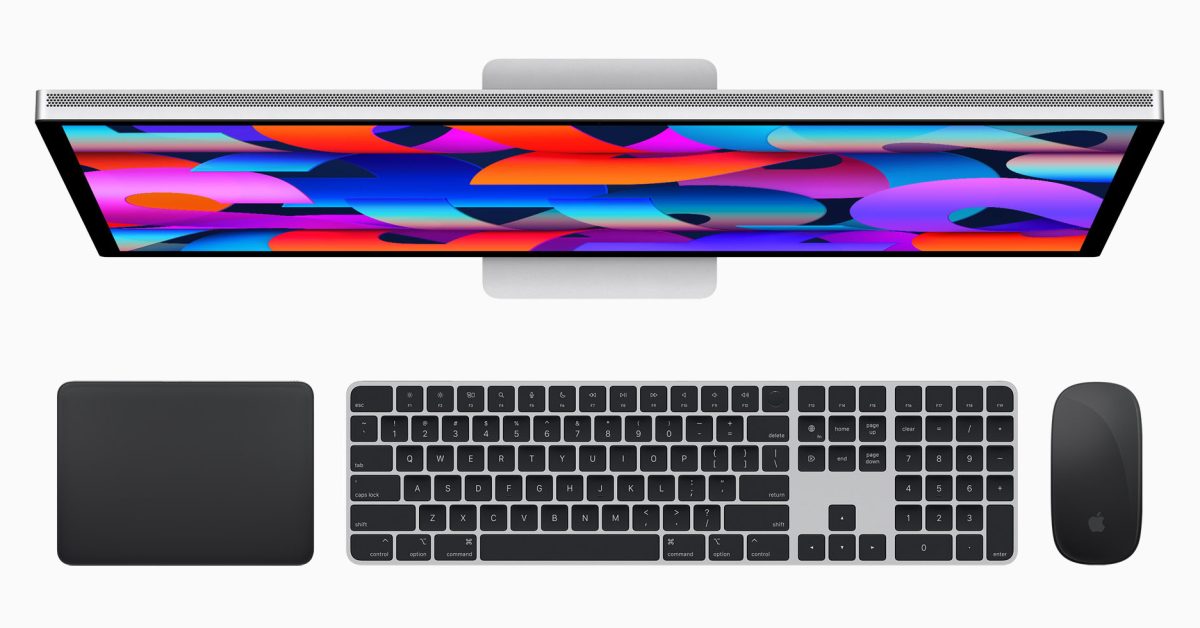
Apple is rolling out a beta new firmware update for its Studio Display today. As we’ve reported before, the Studio Display runs firmware based on iOS and is powered by an A13 Bionic chip inside.

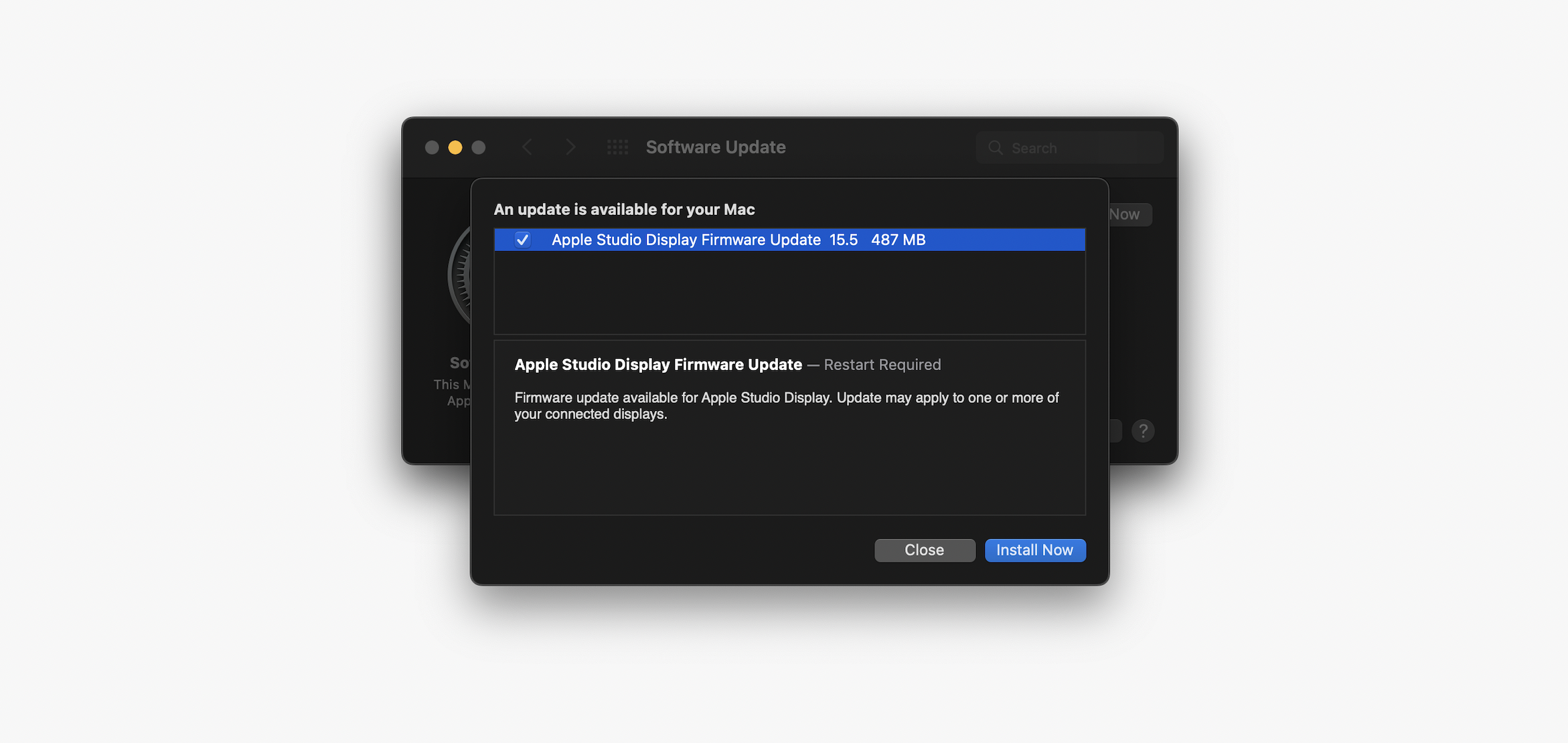
This combination allows Apple to roll out firmware updates to the Studio Display, and today’s update is referred to as “Apple Studio Display Firmware Update 15. 5.” Apple has confirmed that today’s update addresses issues with the webcam quality.

When the early reviews of the Studio Display hit the web last month, Apple promised it would roll out a software update to address concerns about the webcam quality. It is likely that this update will address the concerns regarding the Studio Display’s webcam quality, which has been heavily criticised by reviewers.

According to code changes seen by 9to5Mac, Apple Studio Display Firmware Update 15. 5 does make multiple changes to the frameworks for the webcam as well as Center Stage. We haven’t yet tested it, but it does appear that this update address the lackluster camera quality at least in some form.

[Update: After 9to5Mac‘s findings, Apple confirmed to The Verge that the update addresses “camera tuning, improved noise reduction, contrast, and framing.”]

As of right now, Studio Display Firmware 15. 5 is only available to beta testers. This means that it will appear in System Preferences on your Mac only if the connected Mac is running the macOS Monterey 12. 4 beta. The Studio Display update clocks in at 487 MB in terms of size, which seems like a pretty big update for a display.

If you spot any changes in the new betas from Apple today, let us know in the comments below or on . Stay tuned for our full hands-on coverage with the new releases right here at 9to5Mac.

Read more:

  • Studio Display reviews: The Apple display we need, but with the webcam of an ‘old BlackBerry’
  • Apple Studio Display tidbits: ‘Hey Siri’ for connected Mac, A13 handling, Center Stage onboarding, more
  • Apple promises software update to improve Studio Display’s lackluster webcam

Thanks, Peter!

https://i0.wp.com/9to5mac.com/wp-content/uploads/sites/6/2022/04/Apple-Studio-Display-firmware-update-works-again.jpg?resize=1200%2C628&quality=82&strip=all&ssl=1